How to tag receipts and invoices automatically on Mac
PDFs mentioning receipt or invoice get tagged, without moving or renaming anything
Beginner · About 3 minutes
In this guide
What this does
Not everyone wants their receipts and invoices moved or renamed, sometimes you just want them easy to find later without restructuring the folder they’re already sitting in. This rule is lighter weight than the filing rules above: it tags every PDF that mentions “receipt” or “invoice” with a Finder tag, so you can pull every one of them up with a quick Finder search or a smart folder, wherever they happen to live.
What you’ll build
A rule that matches PDFs mentioning receipt or invoice, then tags each one, without touching the file itself.
Open the rule editor
This walkthrough happens inside FilesAutomator itself, so install it from the Mac App Store first if you have not already, then open it. In its toolbar, choose Add, then New Automation Rule.
Name the rule and choose a folder
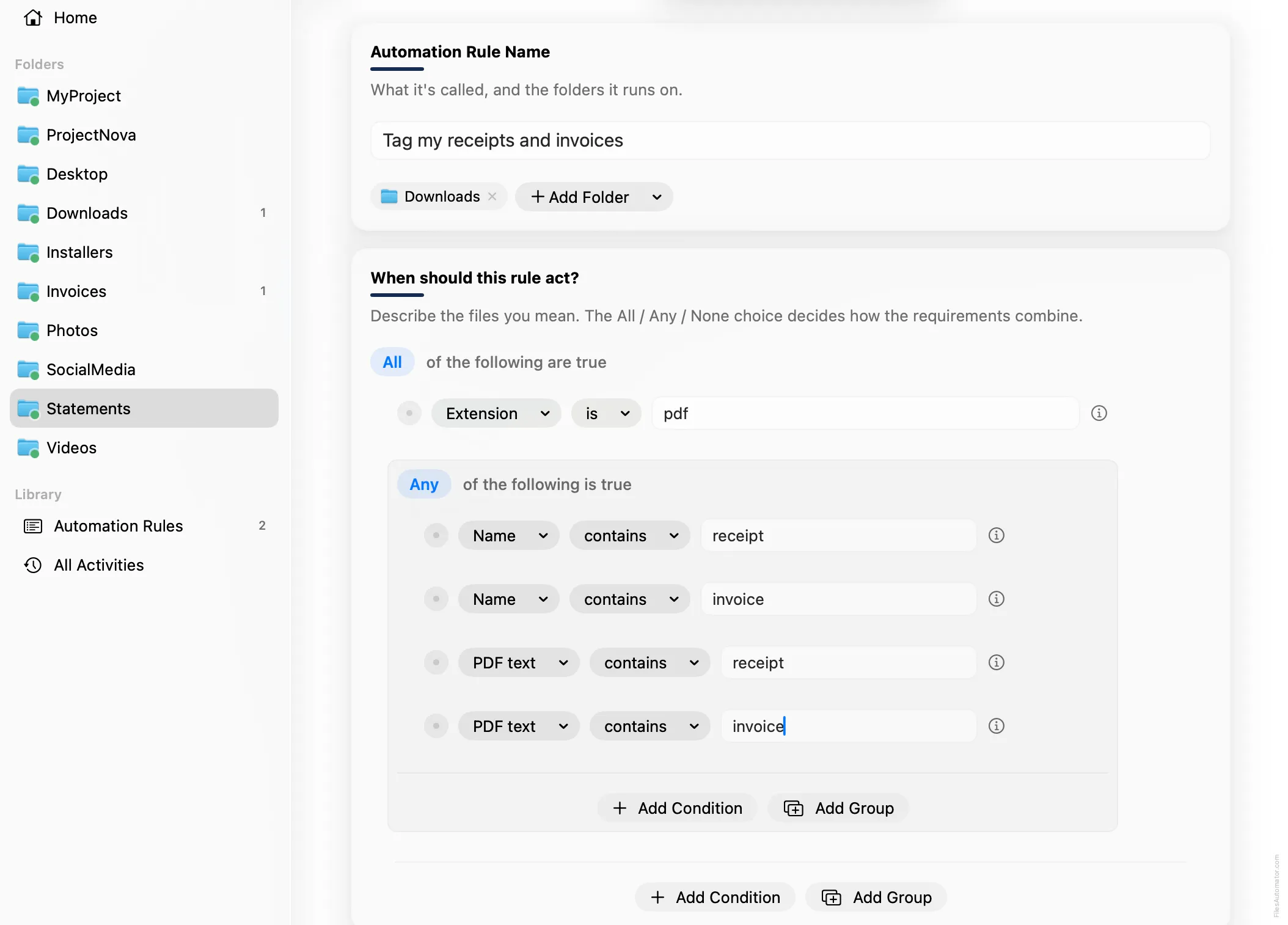
Name it something like “Tag my receipts and invoices” and use Add Folder to choose the folder these documents land in.
Build the condition
Leave the top group set to “All of the following are true”.
Add a condition: Extension is pdf.
Choose Add Group to nest a second group, set its operator to “Any of the following is true”, and add four conditions inside it: Name contains receipt, Name contains invoice, PDF text contains receipt, and PDF text contains invoice.
Add the action steps
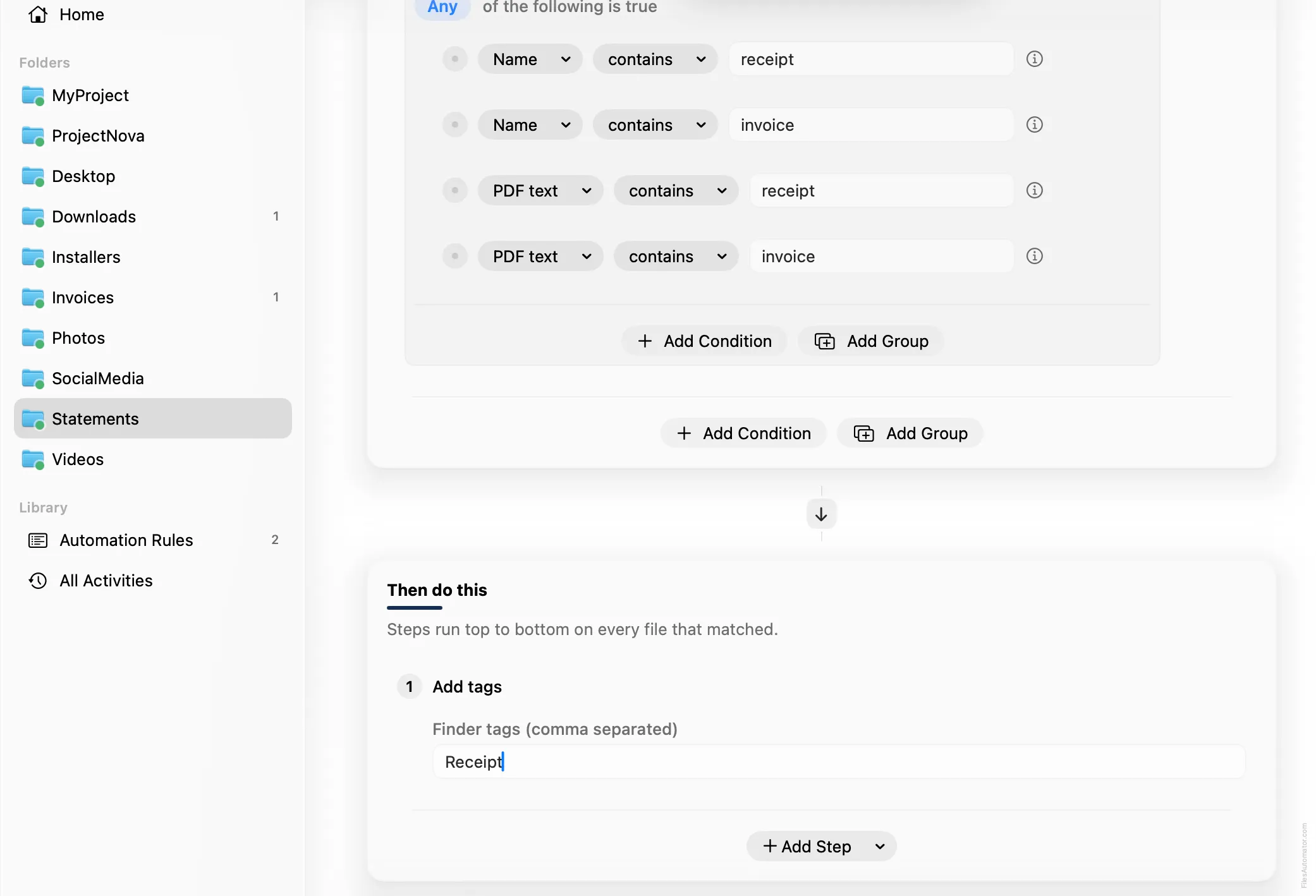
Step 1: Add tags
Choose Add Step, then Add tags. In “Finder tags (comma separated)”, type Receipt.
Turn it on
Select Create Automation Rule, then switch the rule on. Every matching PDF now gets tagged the moment it lands, and you can find every one of them by searching for the Receipt tag in Finder.
A faster way
The template gallery inside FilesAutomator already has this rule ready to install, named Tag receipts and invoices.
Related rules
Get FilesAutomator
Everything in this guide happens inside FilesAutomator itself. Download it free from the Mac App Store to follow along, or to install this exact rule from the template gallery in one click instead of building it by hand.
Download on the App Store