How to shrink videos for sharing on Mac
Converts videos to a smaller HEVC copy for easier sharing, keeps the original alongside
Beginner · About 2 minutes
In this guide
What this does
Video files can be enormous, often too large to email, message, or upload quickly. This is the video version of the “resize photos for sharing” rule: it converts every incoming video to a smaller HEVC copy, which keeps quality high while cutting the file size down considerably, and keeps your original video sitting right alongside it, completely untouched.
What you’ll build
A rule that matches any video, then converts it to a smaller HEVC copy while keeping the original.
Open the rule editor
This walkthrough happens inside FilesAutomator itself, so install it from the Mac App Store first if you have not already, then open it. In its toolbar, choose Add, then New Automation Rule.
Name the rule and choose a folder
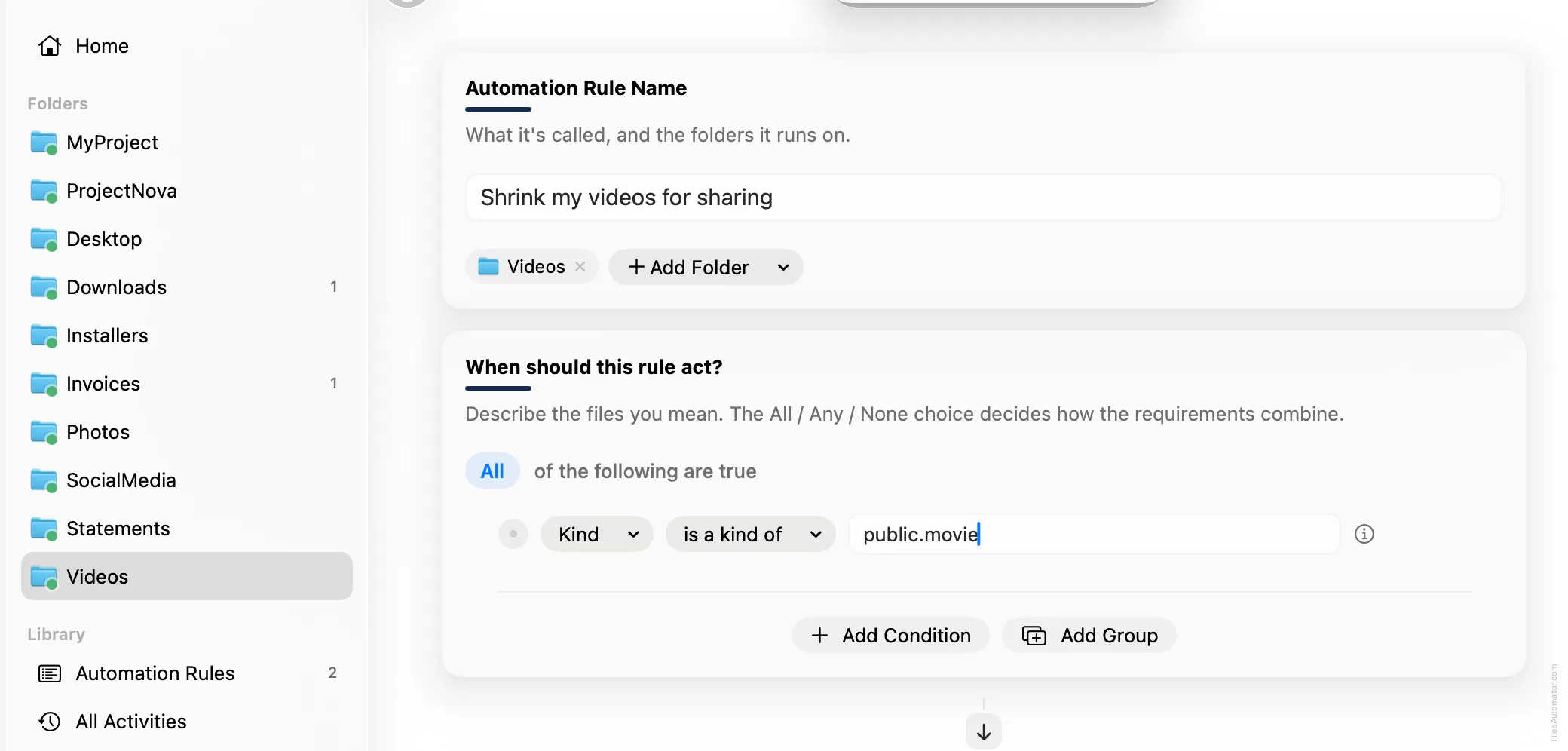
Name it something like “Shrink my videos for sharing” and use Add Folder to choose the folder your videos land in.
Build the condition
Add a single condition: Kind is a kind of public.movie, which matches every video format.
Add the action steps
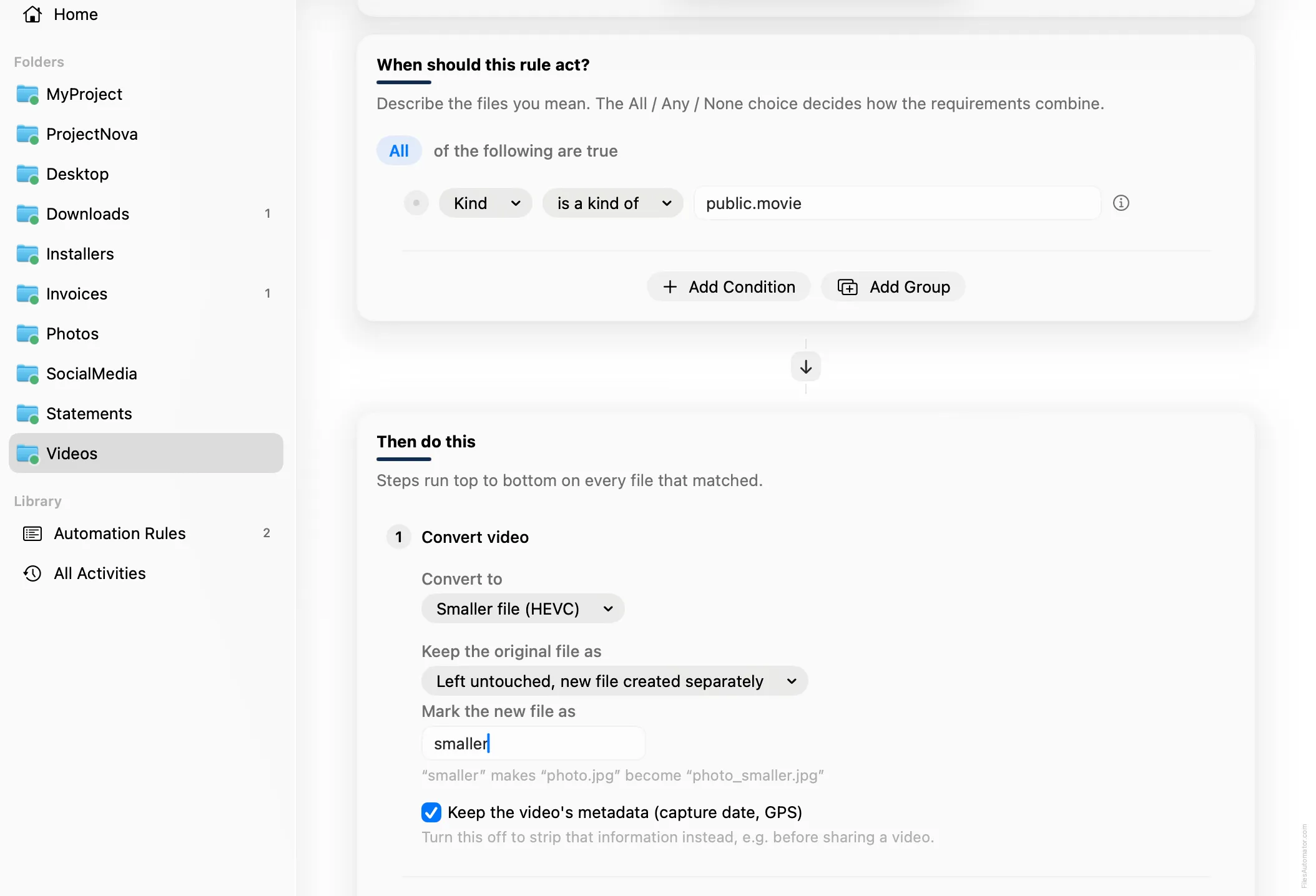
Step 1: Convert video
Choose Add Step, then Convert video. Set “Convert to” to Smaller file (HEVC).
Set “Keep the original file as” to Left untouched, new file created separately, and “Mark the new file as” to “smaller”, so the two versions are easy to tell apart.
Turn it on
Select Create Automation Rule, then switch the rule on. Every video dropped here now gets a smaller, ready to share copy automatically, and the conversion is undoable from Activity.
A faster way
The template gallery inside FilesAutomator already has this rule ready to install, named Shrink videos for sharing.
Related rules
Get FilesAutomator
Everything in this guide happens inside FilesAutomator itself. Download it free from the Mac App Store to follow along, or to install this exact rule from the template gallery in one click instead of building it by hand.
Download on the App Store