How to resize photos for sharing on Mac
Shrink images to a social friendly size, strip location data, and keep the original alongside
Beginner · About 2 minutes
In this guide
What this does
Modern phone photos are large, often too large for email attachments, messaging apps, or a quick upload. This rule is for when you don’t especially care about the exact size, just that it’s small enough to send without a fuss. It shrinks the longest side of every incoming photo down to a sensible size, strips the location data most people don’t realize is embedded in every photo, and keeps your full resolution original sitting right beside it.
If you’re prepping photos for a specific platform’s exact dimensions instead, like Instagram or YouTube, see the related rules below, they crop to an exact aspect ratio first.
What you’ll build
A rule that matches any image, then resizes it down while stripping location metadata and keeping the original.
Open the rule editor
This walkthrough happens inside FilesAutomator itself, so install it from the Mac App Store first if you have not already, then open it. In its toolbar, choose Add, then New Automation Rule.
Name the rule and choose a folder
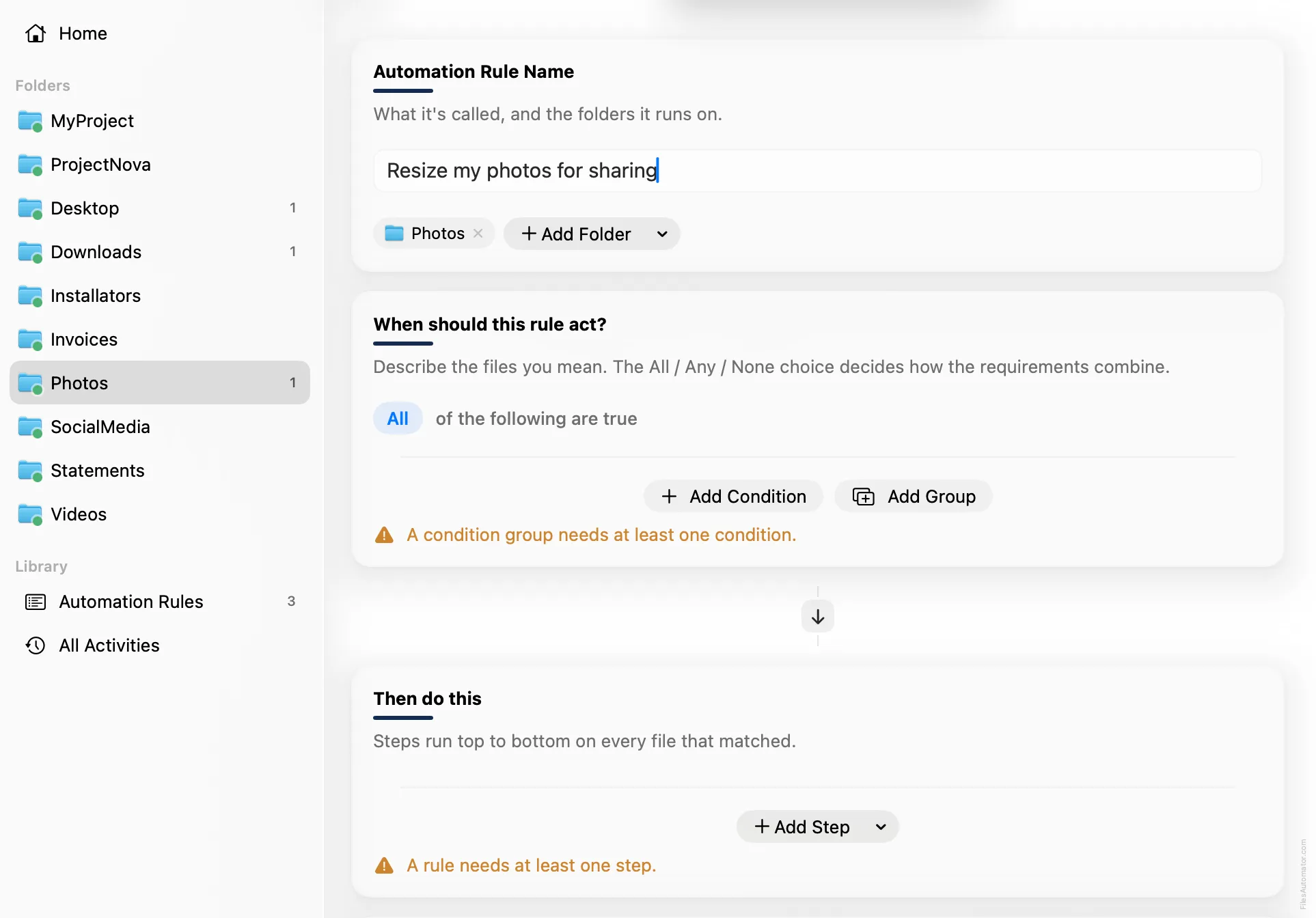
Name it something like “Resize my photos for sharing” and use Add Folder to choose the folder your photos land in.
Build the condition
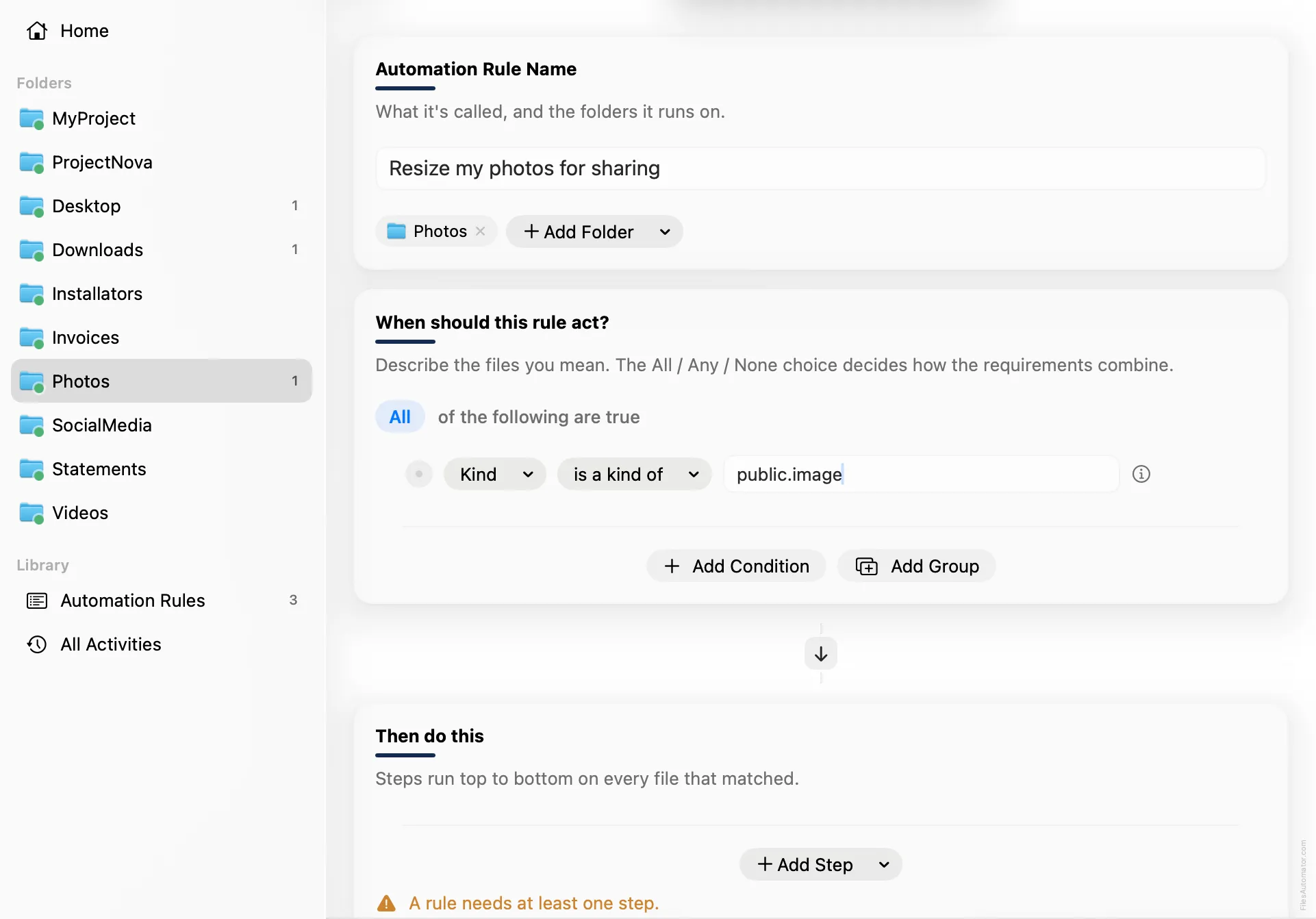
Add a single condition: Kind is a kind of public.image, which matches every image format.
Add the action steps
Step 1: Resize image
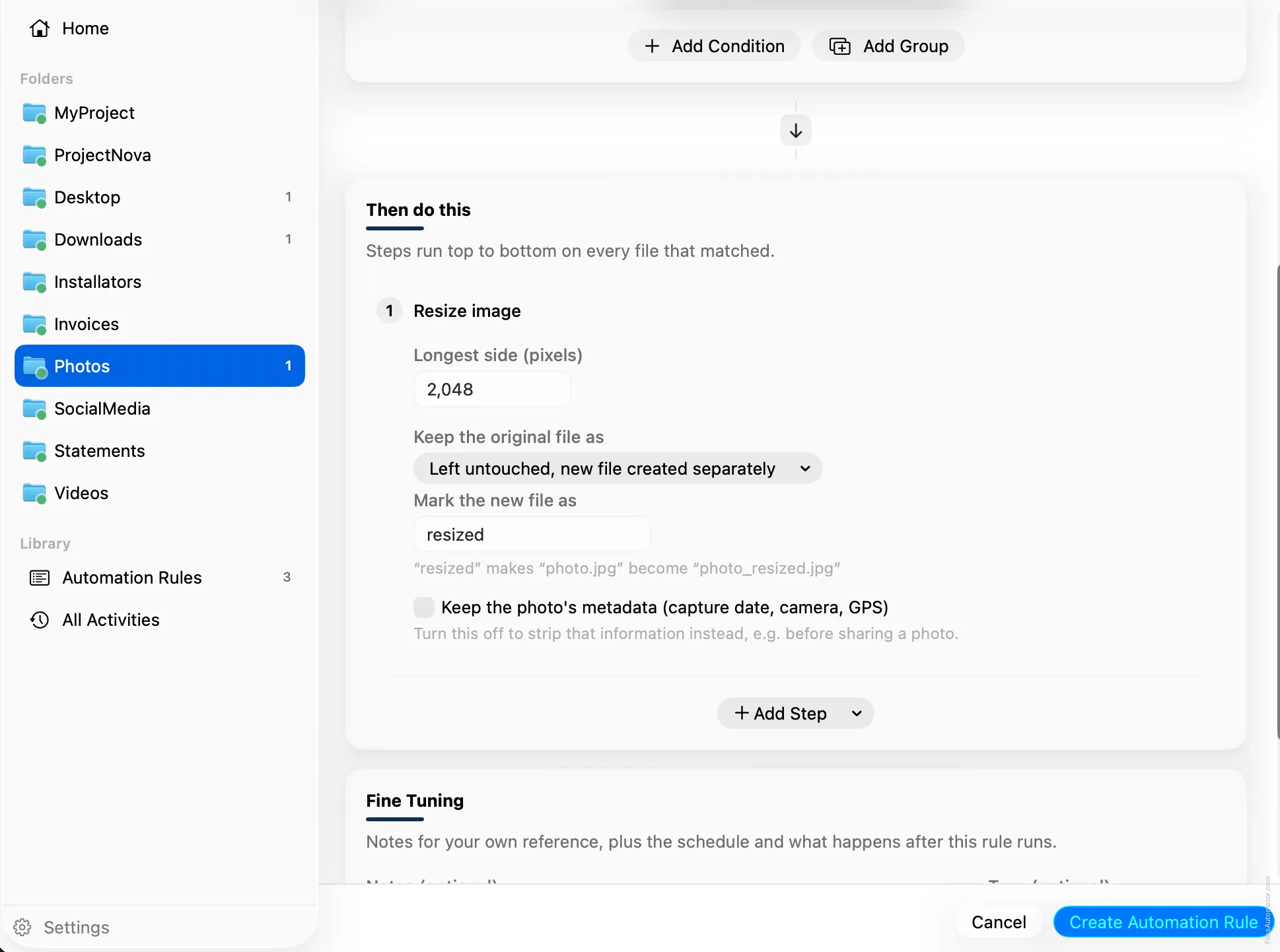
Choose Add Step, then Resize image. Set “Longest side (pixels)” to 2048, a size that looks sharp on screen without being unnecessarily large.
Turn off “Keep original metadata”, so location and other embedded details don’t carry over into the copy you’re about to share.
Set “Keep the original file as” to Left untouched, new file created separately, and set “Mark the new file as” to “resized”, so the smaller copy is easy to tell apart from the original at a glance.
Turn it on
Select Create Automation Rule, then switch the rule on. Every photo dropped here now gets a smaller, metadata free copy ready to share, without ever touching the original.
A faster way
The template gallery inside FilesAutomator already has this rule ready to install, named Resize photos for sharing.
Related rules
Get FilesAutomator
Everything in this guide happens inside FilesAutomator itself. Download it free from the Mac App Store to follow along, or to install this exact rule from the template gallery in one click instead of building it by hand.
Download on the App Store