How to rename photos by what they show on Mac
Photos are renamed using a short description of what's in them, generated with Apple Intelligence when this Mac supports it, otherwise Apple's Vision recognition
Beginner · About 2 minutes
In this guide
What this does
A camera or phone names a photo something like IMG_4213.heic, which says nothing about what’s actually in it. This rule looks at each photo and works out a short description of what it shows, a sunset over the water, a dog on a walk, a receipt on a counter, then builds that description right into the new filename.
On a Mac that supports it, the description comes from Apple Intelligence. Where it doesn’t, the rule falls back to Apple’s own Vision recognition instead, so it still works either way. Either path runs entirely on this Mac, nothing about the photo is ever sent anywhere.
What you’ll build
A rule that matches every image, then renames it using a short description of what it shows, followed by its original name.
Open the rule editor
This walkthrough happens inside FilesAutomator itself, so install it from the Mac App Store first if you have not already, then open it. In its toolbar, choose Add, then New Automation Rule.
Name the rule and choose a folder
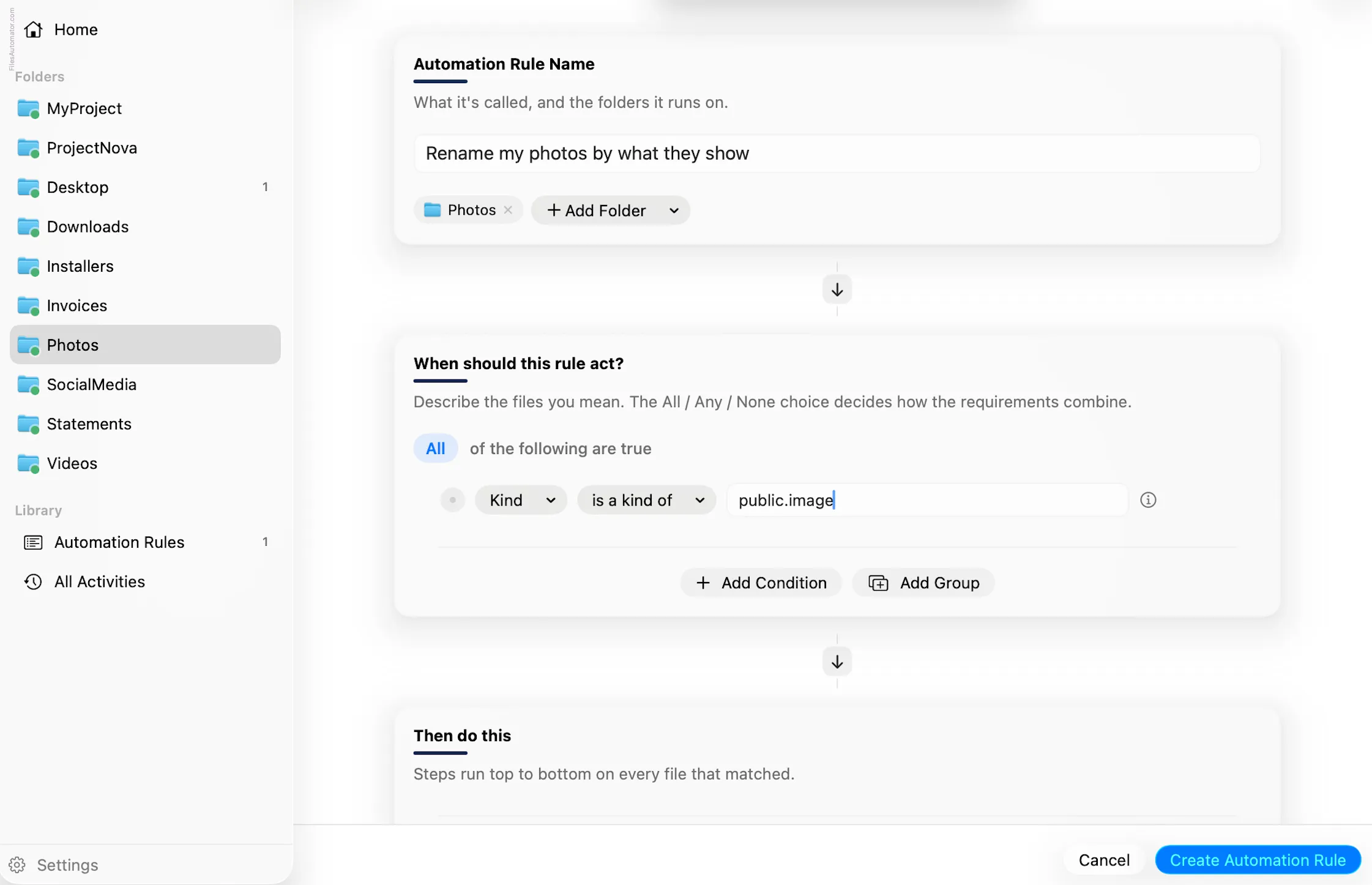
Name it something like “Rename my photos by what they show” and use Add Folder to choose the folder your photos land in.
Build the condition
Add a single condition: Kind is a kind of public.image, matching every image format.
Add the action steps
Step 1: Rename
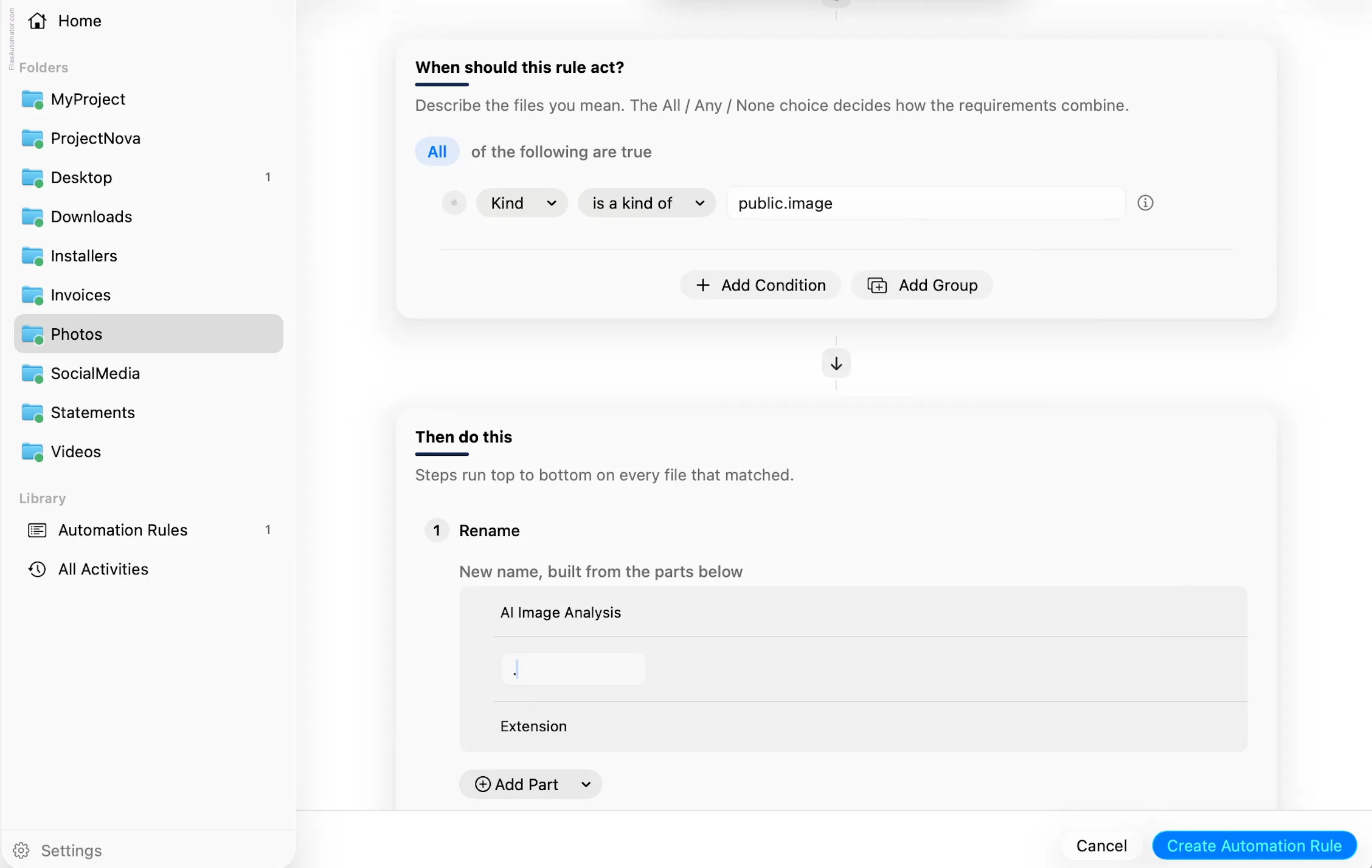
Choose Add Step, then Rename. In “New name, built from the parts below”, use Add Part, then AI Image Analysis. Add Part again, choose Text, and type an underscore. Add Part once more and choose Original name.
Turn it on
Select Create Automation Rule, then switch the rule on. Every photo that lands here now gets a plain language description of what it shows built right into its filename.
A faster way
The template gallery inside FilesAutomator already has this rule ready to install, named Rename photos by what they show.
Related rules
How to sort iPhone photos by capture date on Mac
Photos taken on an iPhone are renamed by capture date and filed into an iPhone Photos folder by year
How to sort photos by year taken on Mac
File every photo into a year folder, based on when it was actually taken
How to sort screenshots automatically on Mac
Move screenshots into a Screenshots subfolder the moment they land
Get FilesAutomator
Everything in this guide happens inside FilesAutomator itself. Download it free from the Mac App Store to follow along, or to install this exact rule from the template gallery in one click instead of building it by hand.
Download on the App Store