How to sort photos by year taken on Mac
File every photo into a year folder, based on when it was actually taken
Beginner · About 2 minutes
In this guide
What this does
A folder full of photos from a memory card, an old backup, or years of exports quickly becomes unsearchable. This rule sorts every incoming photo into a folder named for the year it was taken, using the capture date stored in the photo itself, not the date it happened to land on your Mac. That distinction matters: a photo from 2019 that you only just copied over lands in a 2019 folder, not today’s.
What you’ll build
A rule that matches any image, then sorts it into a subfolder named for its capture year.
Open the rule editor
This walkthrough happens inside FilesAutomator itself, so install it from the Mac App Store first if you have not already, then open it. In its toolbar, choose Add, then New Automation Rule.
Name the rule and choose a folder
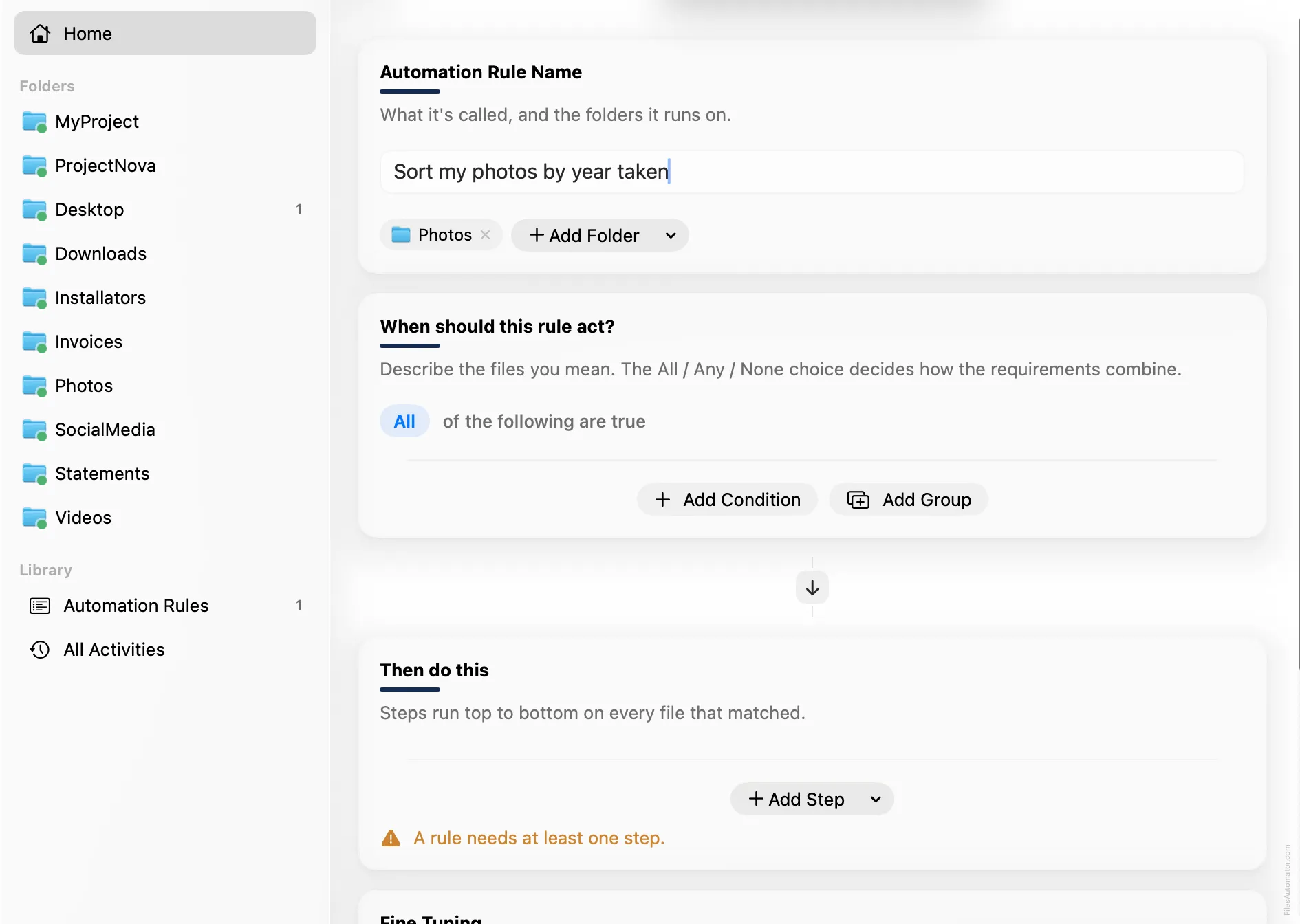
In the Automation Rule Name card, name it something like “Sort my photos by year taken” and use Add Folder to choose the folder your photos land in.
Build the condition
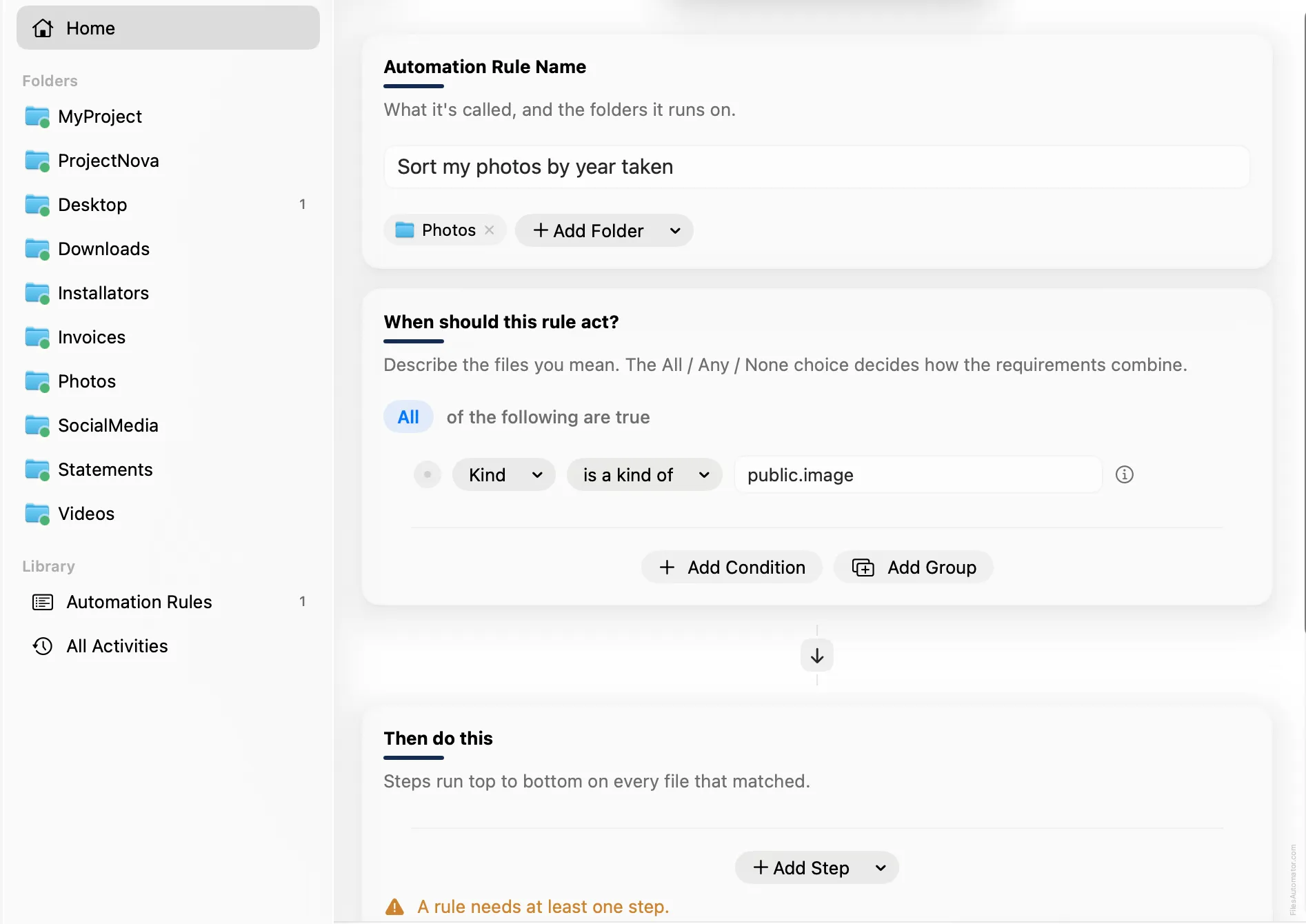
Under “When should this rule act?”, add a single condition: Kind is a kind of public.image, which matches every image format. That’s enough on its own, since every image has a capture date to sort by.
Add the action steps
Step 1: Sort into subfolder
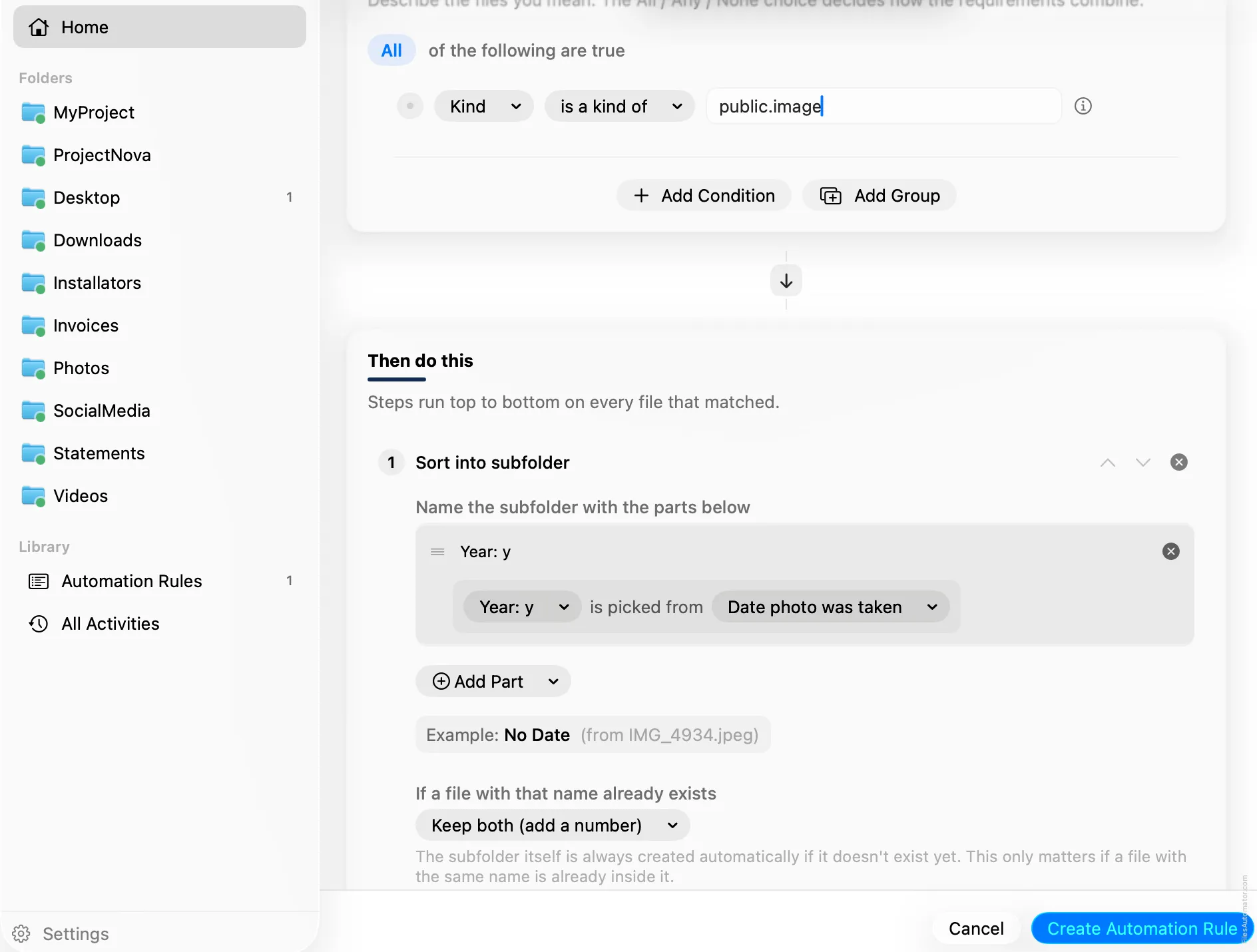
Choose Add Step, then Sort into folder. In “Name the subfolder with the parts below”, use Add Part, then Date, then Year: y. This inserts a chip that reads by default from Date added, so click the chip and change its source to Date photo was taken, the one that reflects when you actually took the picture rather than when it arrived on this Mac.
Turn it on
Select Create Automation Rule, then switch the rule on from the folder’s rule list. Every photo that lands here from now on files itself into the right year automatically.
A faster way
The template gallery inside FilesAutomator already has this rule ready to install, named Sort photos by year taken. Use the walkthrough above to understand exactly what it does, or the template to get it running in one click.
Related rules
Get FilesAutomator
Everything in this guide happens inside FilesAutomator itself. Download it free from the Mac App Store to follow along, or to install this exact rule from the template gallery in one click instead of building it by hand.
Download on the App Store