How to rename invoices with the invoice number on Mac
PDFs mentioning invoice renamed using the invoice number found inside, for example INV-1049
Advanced · About 4 minutes
In this guide
What this does
Filing invoices by month gets you most of the way to organized, but when you’re hunting for one specific invoice, its own reference number is often the fastest thing to search for. This rule finds the invoice number printed inside the PDF and uses it to rename the file, so “INV-1049” becomes part of the filename itself rather than something you’d have to open the document to see.
This is the one rule in this guide that uses a regex capture, a search pattern that finds and pulls out a specific piece of text. You don’t need to understand regex to use it, since this exact pattern is copied straight from the built in template, but it’s worth knowing what it’s doing: it looks for the word “invoice”, skips past a short run of filler words like “number” or “no.”, then grabs the first thing after that which actually looks like an ID, a mix of letters and digits containing at least one digit. That last part matters: an earlier, simpler version of this pattern accidentally grabbed the word “Invoice” itself off a line reading “Invoice / Invoice number IN-75533938”, because it happily accepted any word rather than holding out for something that looked like an ID.
What you’ll build
A rule that matches PDFs mentioning invoice, then renames each using the invoice number captured from its own text.
Open the rule editor
This walkthrough happens inside FilesAutomator itself, so install it from the Mac App Store first if you have not already, then open it. In its toolbar, choose Add, then New Automation Rule.
Name the rule and choose a folder
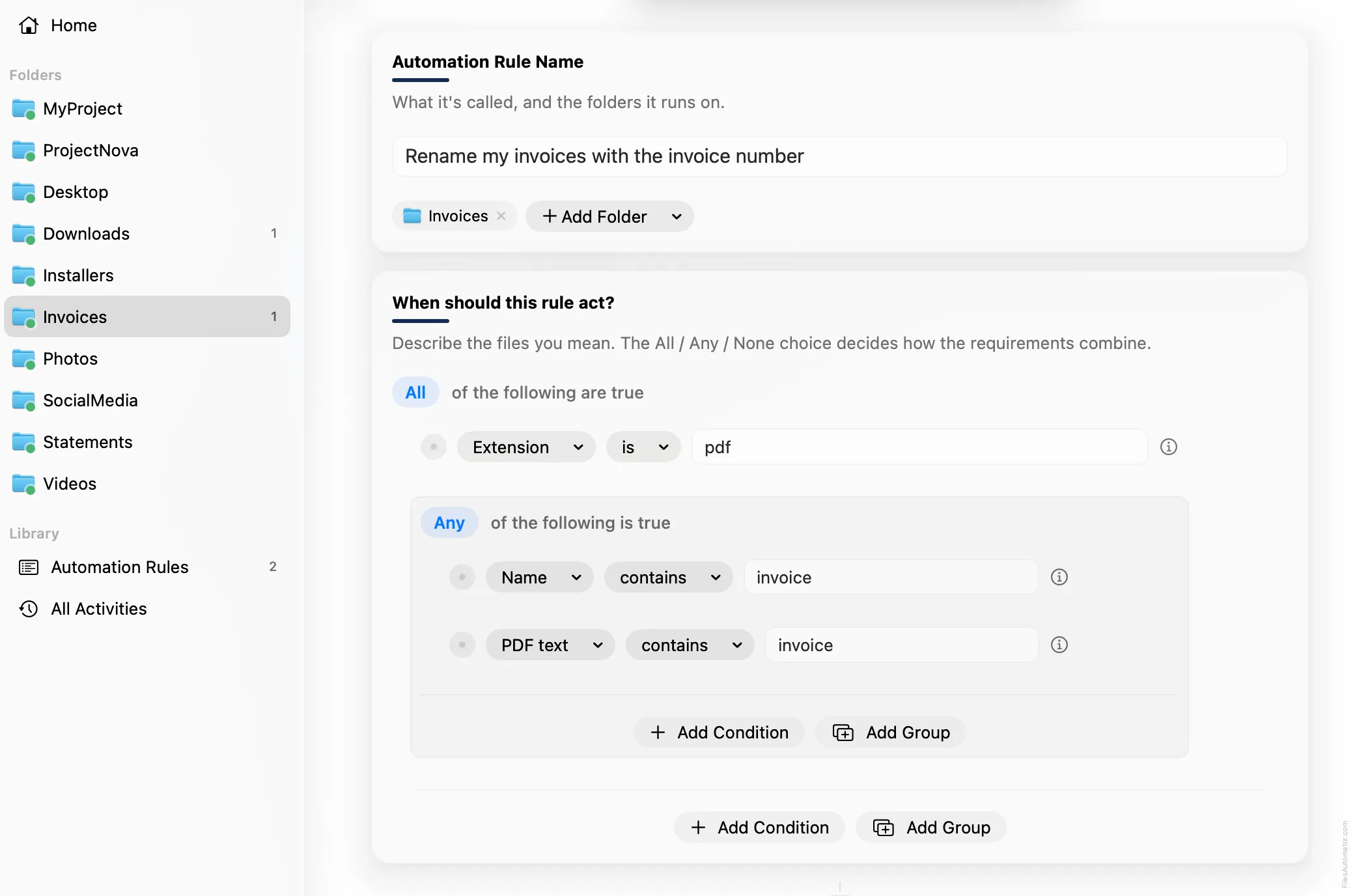
Name it something like “Rename my invoices with the invoice number” and use Add Folder to choose the folder your invoices land in.
Build the condition
Leave the top group set to “All of the following are true”.
Add a condition: Extension is pdf.
Choose Add Group to nest a second group, set its operator to “Any of the following is true”, and add two conditions inside it: Name contains invoice, and PDF text contains invoice.
Add the action steps
Step 1: Rename
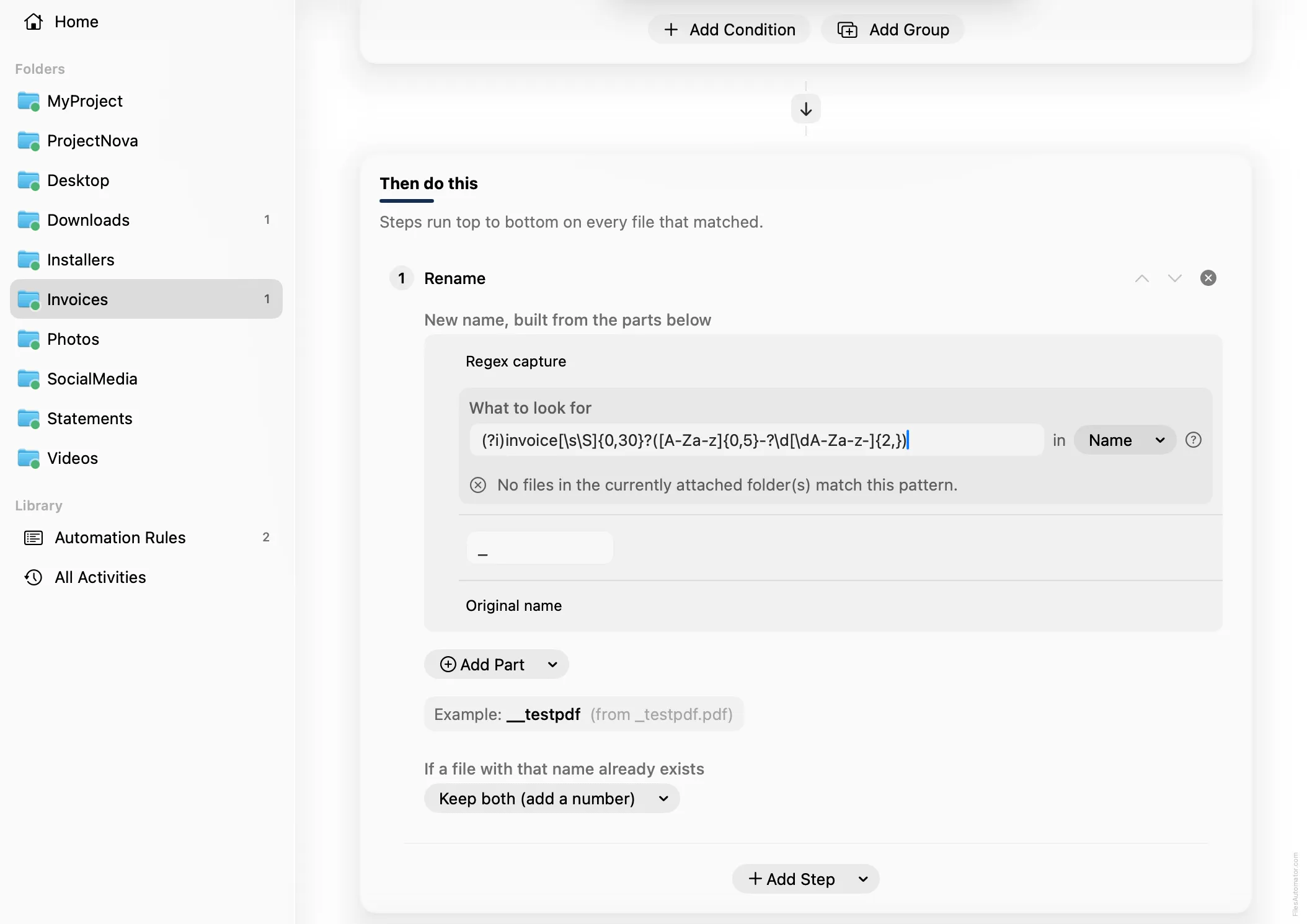
Choose Add Step, then Rename. In “New name, built from the parts below”, use Add Part, then Regex capture. Change its source to Content, then paste this pattern into “What to look for”:
(?i)invoice[\s\S]{0,30}?([A-Za-z]{0,5}-?\d[\dA-Za-z-]{2,})Add Part again, choose Text, and type an underscore. Add Part once more and choose Original name.
Turn it on
Select Create Automation Rule, then switch the rule on. Every matching invoice now gets its own invoice number worked right into the filename.
A faster way
The template gallery inside FilesAutomator already has this rule ready to install, named Rename invoices with the invoice number.
Related rules
Get FilesAutomator
Everything in this guide happens inside FilesAutomator itself. Download it free from the Mac App Store to follow along, or to install this exact rule from the template gallery in one click instead of building it by hand.
Download on the App Store