How to automatically empty a scratch folder on Mac
Everything dropped here moves straight to the Trash, so this folder stays empty and ready for temporary files
Beginner · About 1 minute
In this guide
What this does
A scratch folder, somewhere you drop things temporarily while working, is only useful if it actually stays empty. Rather than clearing it out on a schedule, this rule reacts the moment anything lands: it trashes it immediately, so the folder is always back to empty and ready for the next temporary file, with no age check at all.
What you’ll build
A rule that matches absolutely everything dropped into a folder, then trashes it right away.
Open the rule editor
This walkthrough happens inside FilesAutomator itself, so install it from the Mac App Store first if you have not already, then open it. In its toolbar, choose Add, then New Automation Rule.
Name the rule and choose a folder
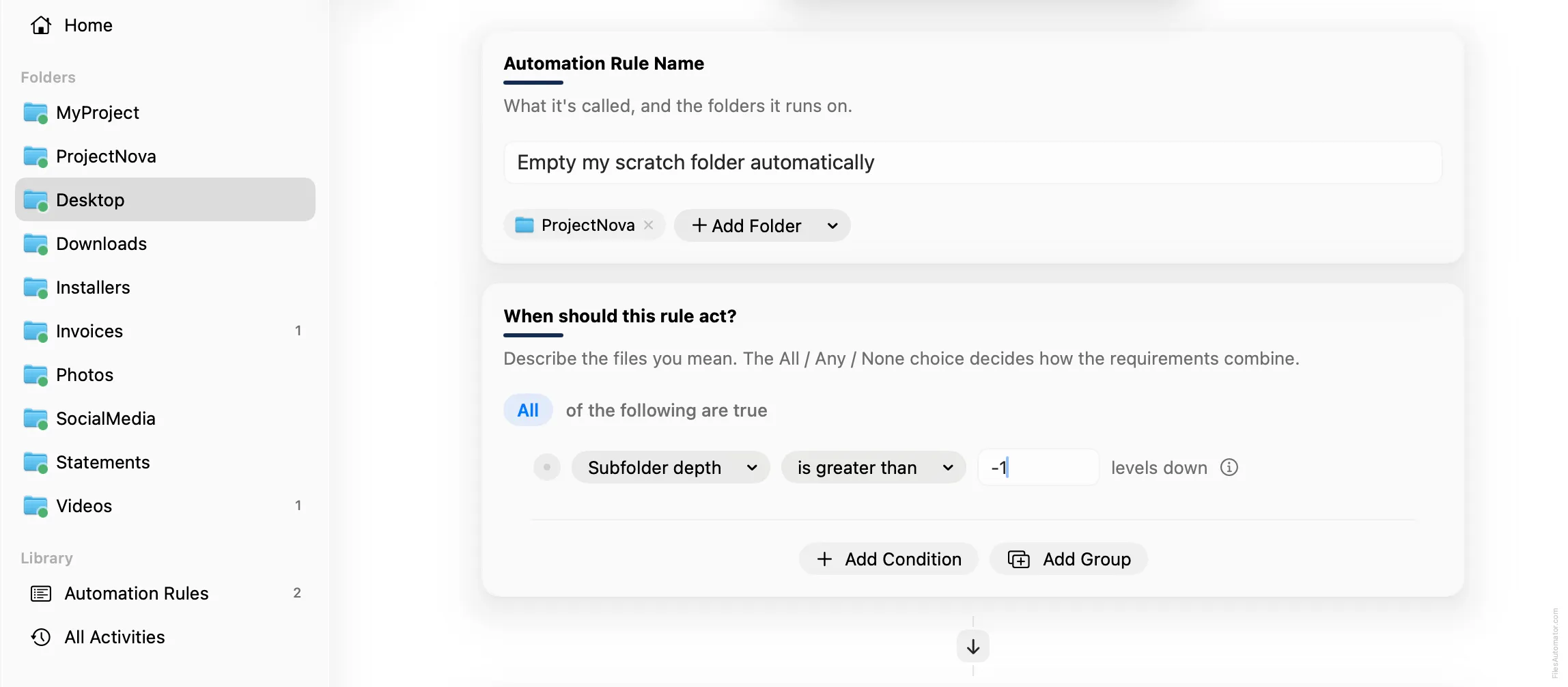
Name it something like “Empty my scratch folder automatically” and use Add Folder to choose your scratch folder.
Build the condition
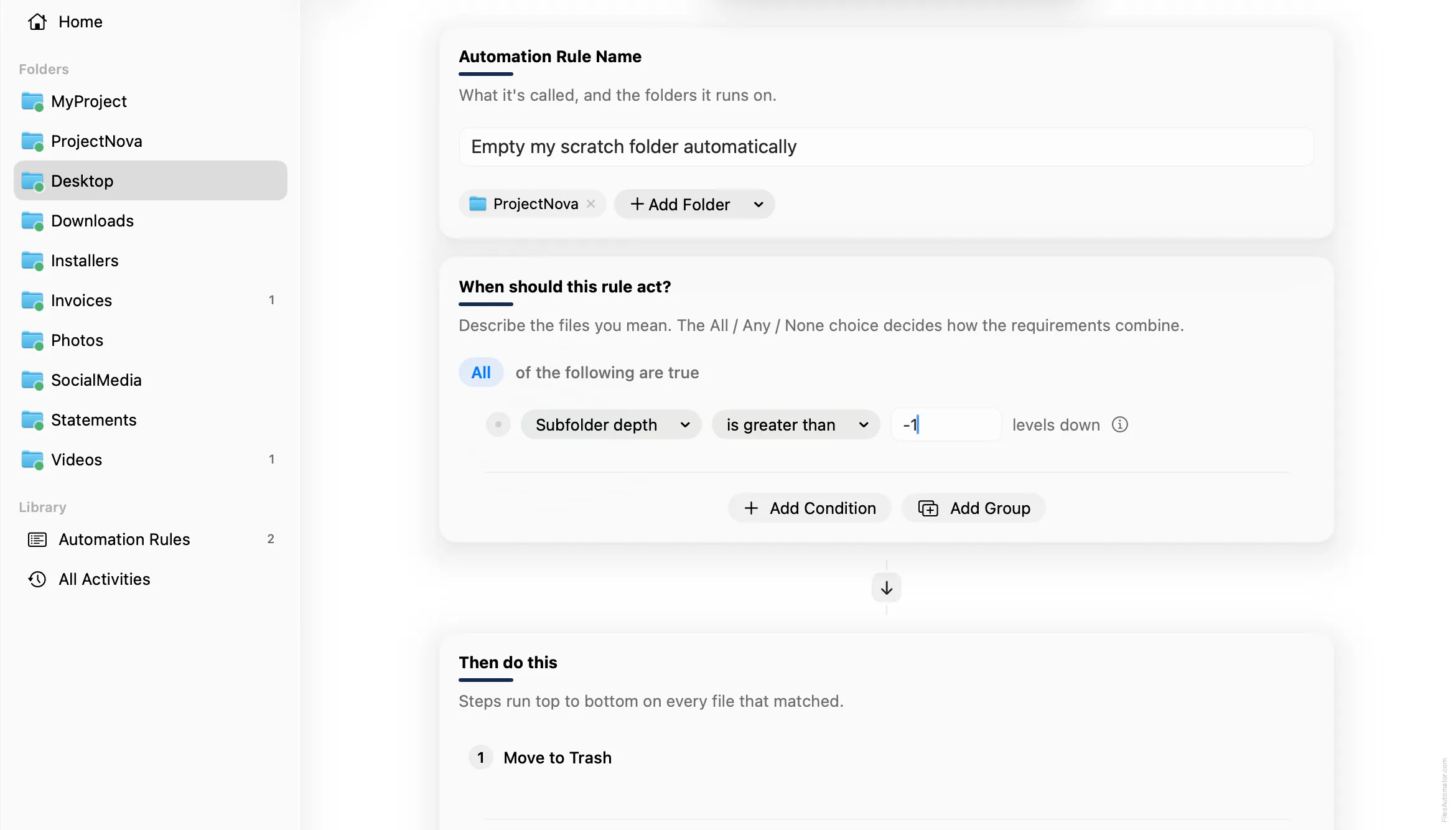
Add a single condition: Subfolder depth is greater than -1. Depth is never actually negative, so this is always true, a way of matching truly every file with no exceptions, including files of zero bytes that some other conditions would skip.
Add the action steps
Step 1: Move to Trash
Choose Add Step, then Move to Trash. This step has no extra fields to fill in.
Turn it on
Select Create Automation Rule, then switch the rule on. From now on, this folder clears itself the moment anything lands in it.
A faster way
The template gallery inside FilesAutomator already has this rule ready to install, named Empty a scratch folder automatically.
Related rules
Get FilesAutomator
Everything in this guide happens inside FilesAutomator itself. Download it free from the Mac App Store to follow along, or to install this exact rule from the template gallery in one click instead of building it by hand.
Download on the App Store