How to automatically clean an overcrowded folder on Mac
Once this folder holds more than 300 items, anything untouched for 14 days moves to the Trash
Intermediate · About 2 minutes
In this guide
What this does
Rather than cleaning up on a fixed schedule regardless of how full a folder actually is, this rule waits until the folder is genuinely overcrowded, more than 300 items, and only then starts trashing anything that’s been sitting untouched for 14 days. That combination matters: a file that just arrived five minutes ago is never at risk just because the folder happens to be full.
What you’ll build
A rule that only acts once a folder holds more than 300 items, then trashes items older than 14 days within it.
Open the rule editor
This walkthrough happens inside FilesAutomator itself, so install it from the Mac App Store first if you have not already, then open it. In its toolbar, choose Add, then New Automation Rule.
Name the rule and choose a folder
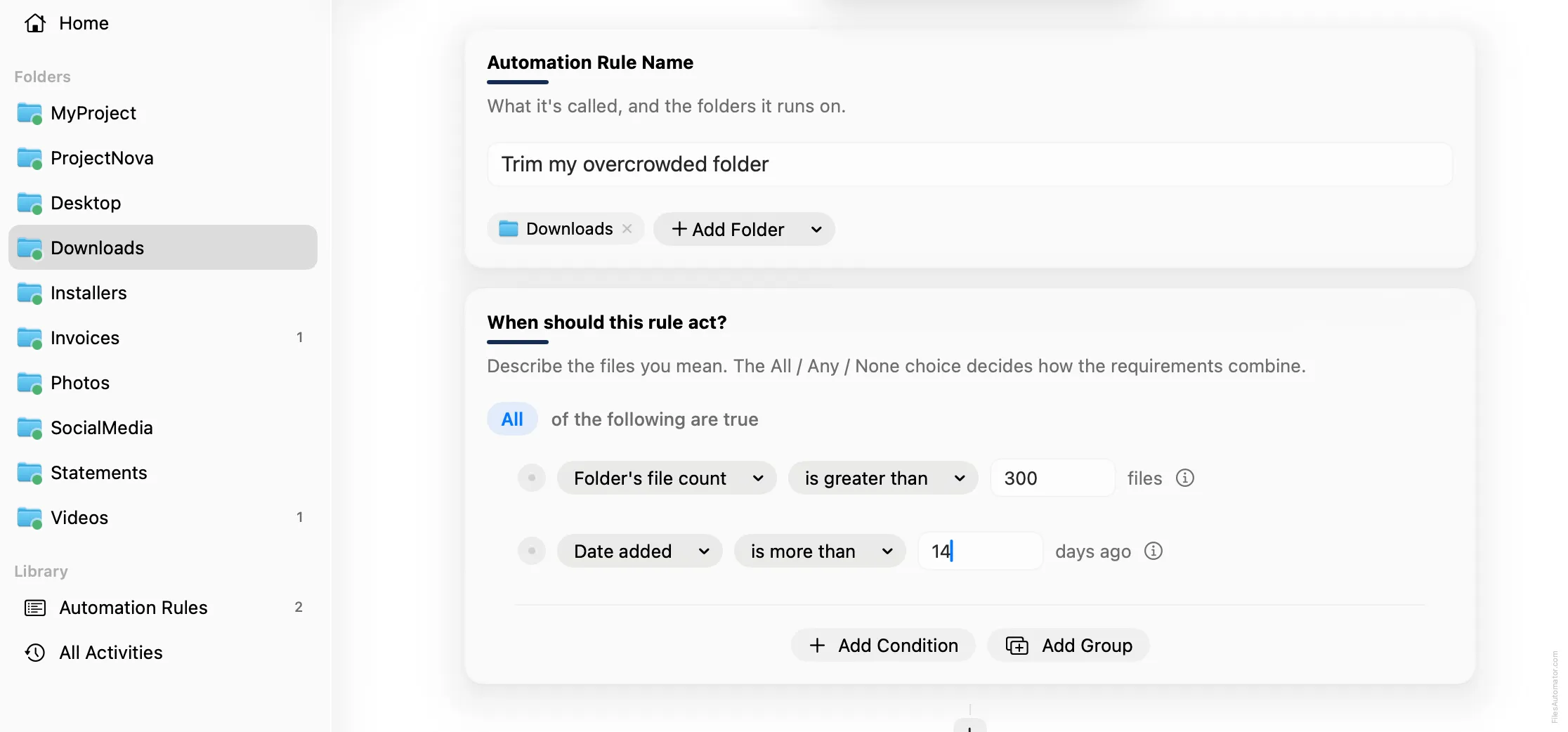
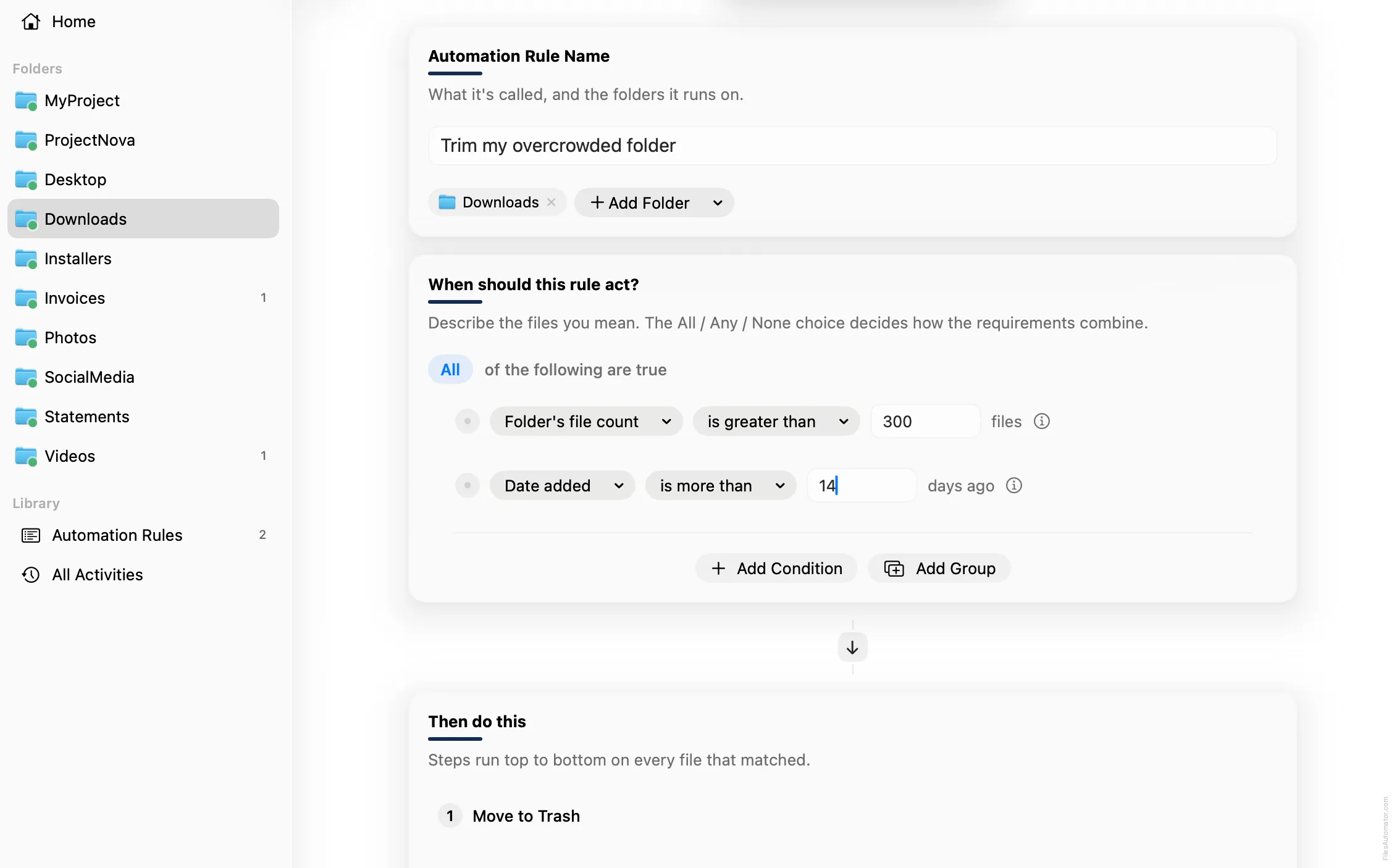
Name it something like “Trim my overcrowded folder” and use Add Folder to choose the folder you want kept under control.
Build the condition
Leave the top group set to “All of the following are true”.
Add a condition: Folder’s file count is greater than 300.
Add a second condition: Date added is more than 14 days ago.
Add the action steps
Step 1: Move to Trash
Choose Add Step, then Move to Trash. This step has no extra fields to fill in.
Turn it on
Select Create Automation Rule, then switch the rule on. The folder now trims itself back only when it actually needs it.
A faster way
The template gallery inside FilesAutomator already has this rule ready to install, named Trim an overcrowded folder.
Related rules
Get FilesAutomator
Everything in this guide happens inside FilesAutomator itself. Download it free from the Mac App Store to follow along, or to install this exact rule from the template gallery in one click instead of building it by hand.
Download on the App Store