How to automatically delete risky file types on Mac
Files with no legitimate use on a Mac move straight to the Trash, undoable
Beginner · About 2 minutes
In this guide
What this does
Some file types only ever make sense as something you’d double click and run, never something you’d open and read. None of them have a real reason to be sitting in a Mac’s Downloads folder. This rule targets a short, deliberately conservative list of those extensions and moves them straight to the Trash on sight, so they’re not sitting around waiting to be opened by accident. Because it goes through the Trash and every action here is undoable from Activity, a file you actually needed is easy to recover.
What you’ll build
A rule that matches a set of risky extensions, then moves each match to the Trash.
Open the rule editor
This walkthrough happens inside FilesAutomator itself, so install it from the Mac App Store first if you have not already, then open it. In its toolbar, choose Add, then New Automation Rule.
Name the rule and choose a folder
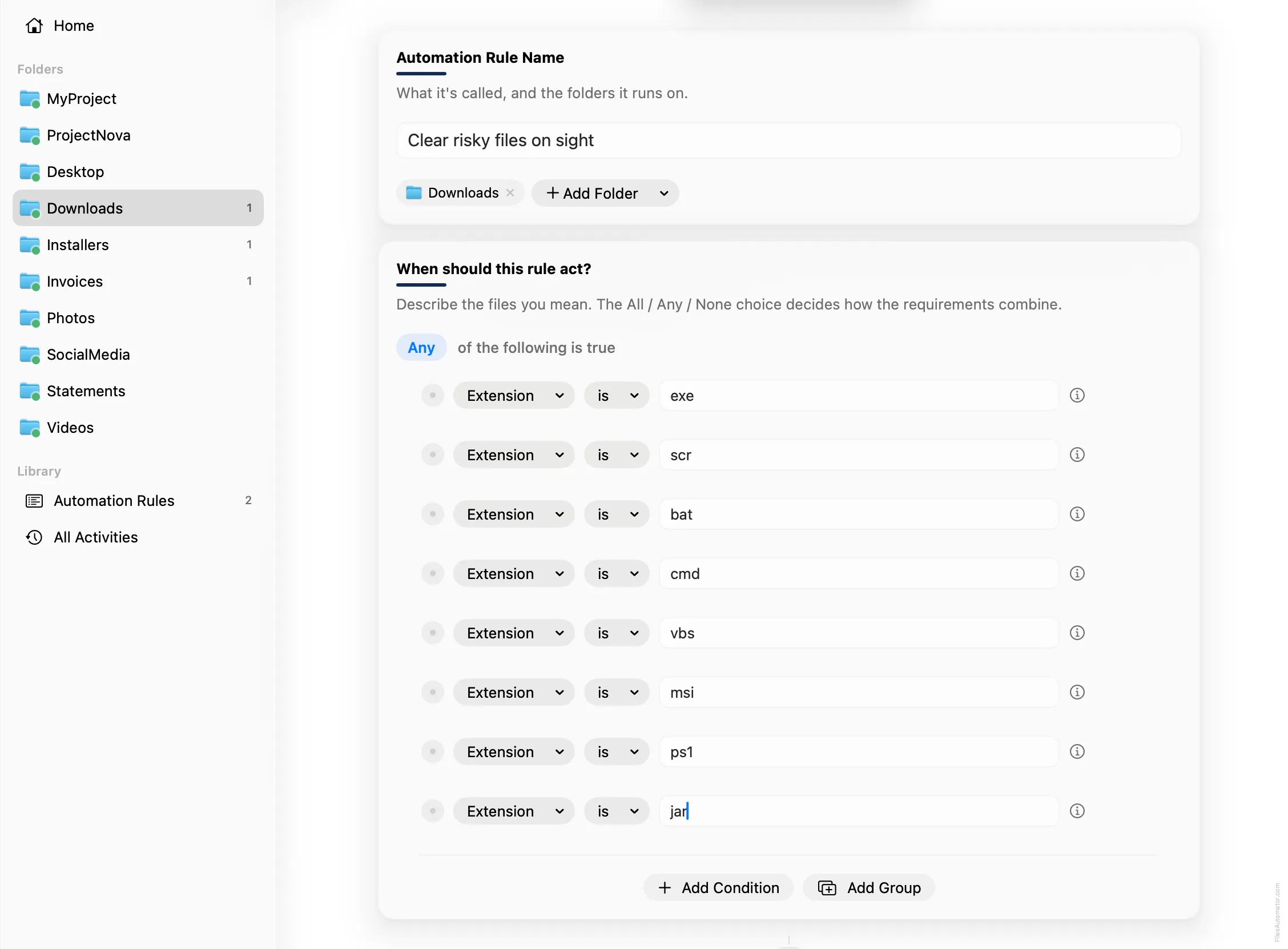
Name it something like “Clear risky files on sight” and use Add Folder to choose your Downloads folder.
Build the condition
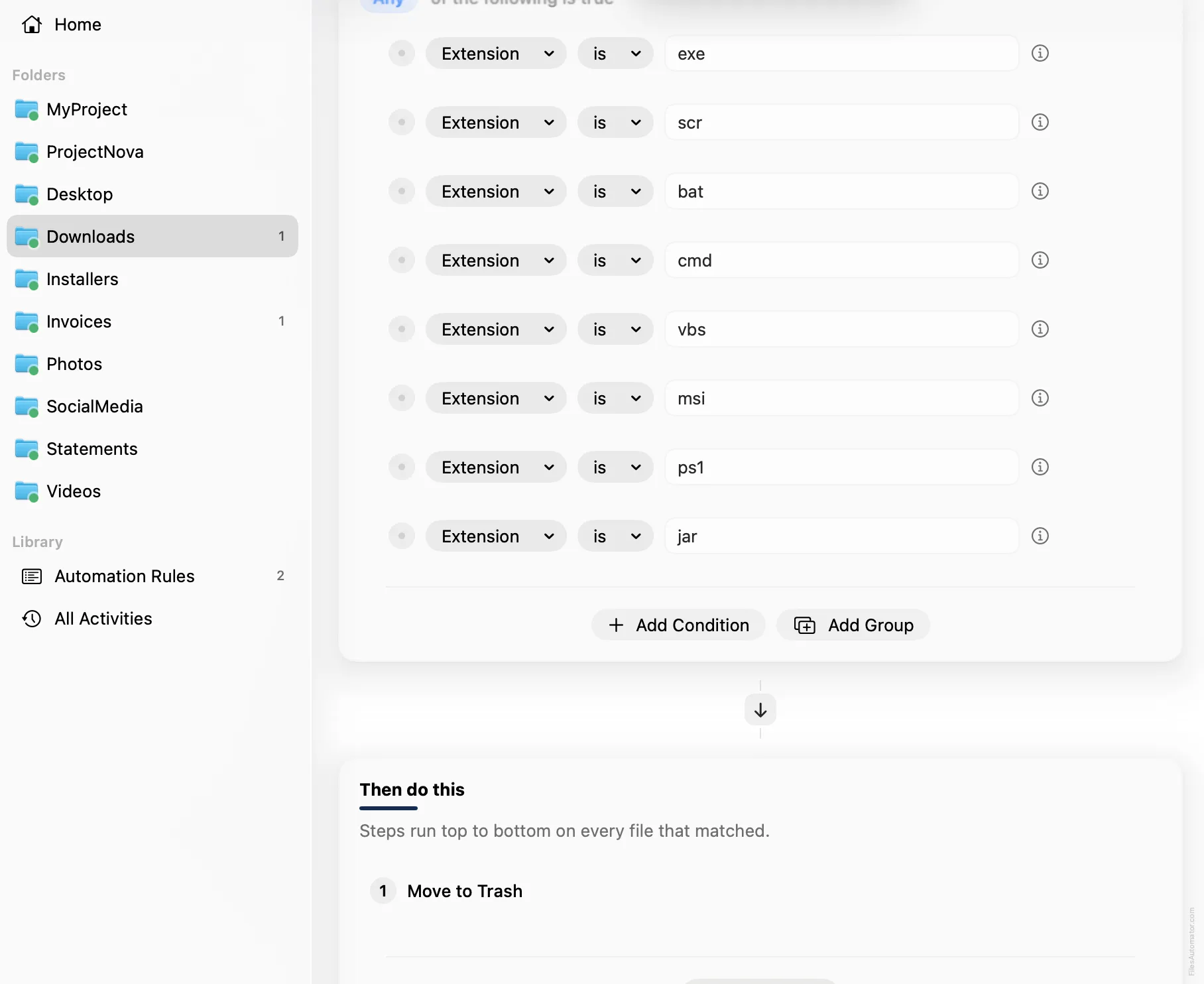
Set the group to “Any of the following is true”, then add one condition per extension, all using Extension is: exe, scr, bat, cmd, vbs, msi, ps1, and jar.
Add the action steps
Step 1: Move to Trash
Choose Add Step, then Move to Trash. This step has no extra fields to fill in.
Turn it on
Select Create Automation Rule, then switch the rule on. From now on, anything matching this list is moved out of the way the moment it lands.
A faster way
The template gallery inside FilesAutomator already has this rule ready to install, named Trash risky file types on sight.
Related rules
Get FilesAutomator
Everything in this guide happens inside FilesAutomator itself. Download it free from the Mac App Store to follow along, or to install this exact rule from the template gallery in one click instead of building it by hand.
Download on the App Store