How to rename video files by season and episode on Mac
Renames video files using the season and episode numbers already in the filename, like S01E02
Advanced · About 3 minutes
In this guide
What this does
Ripped or downloaded video files often already carry a season and episode tag somewhere in their name, something like “S01E02”, buried among other text a media library app doesn’t need. This rule pulls that tag out with a regex capture and uses it to build a clean filename, leaving files that don’t have a season and episode tag alone entirely, since they’re simply not the kind of file this rule is for.
What you’ll build
A rule that matches video files with a season and episode tag in their name, then renames each using that tag.
Open the rule editor
This walkthrough happens inside FilesAutomator itself, so install it from the Mac App Store first if you have not already, then open it. In its toolbar, choose Add, then New Automation Rule.
Name the rule and choose a folder
Name it something like “Rename my ripped media by season and episode” and use Add Folder to choose your media folder.
Build the condition
Leave the top group set to “All of the following are true”.
Add a condition: Kind is a kind of public.movie, which matches every video format.
Add a second condition: Name matches pattern, then enter this pattern:
(?i)s\d{1,2}e\d{1,2}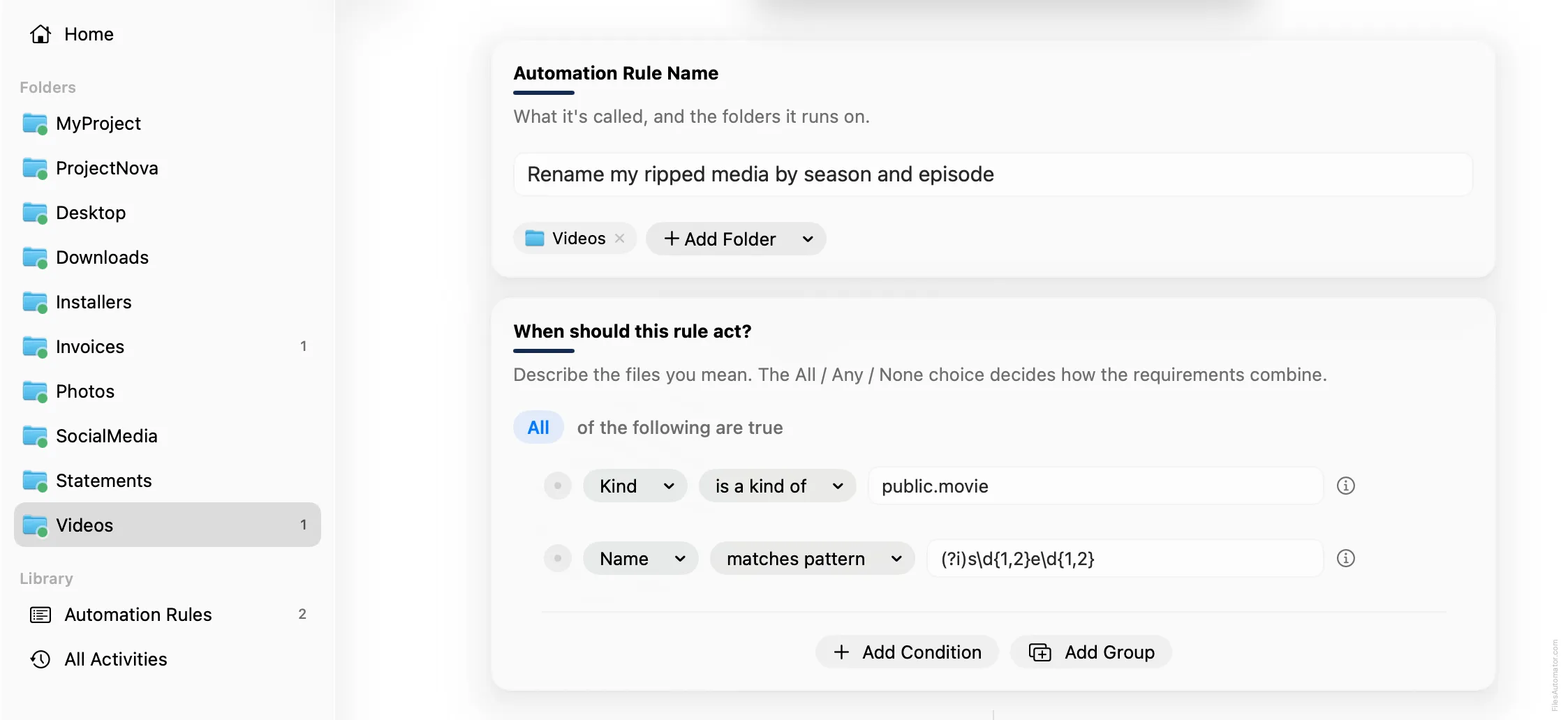
Add the action steps
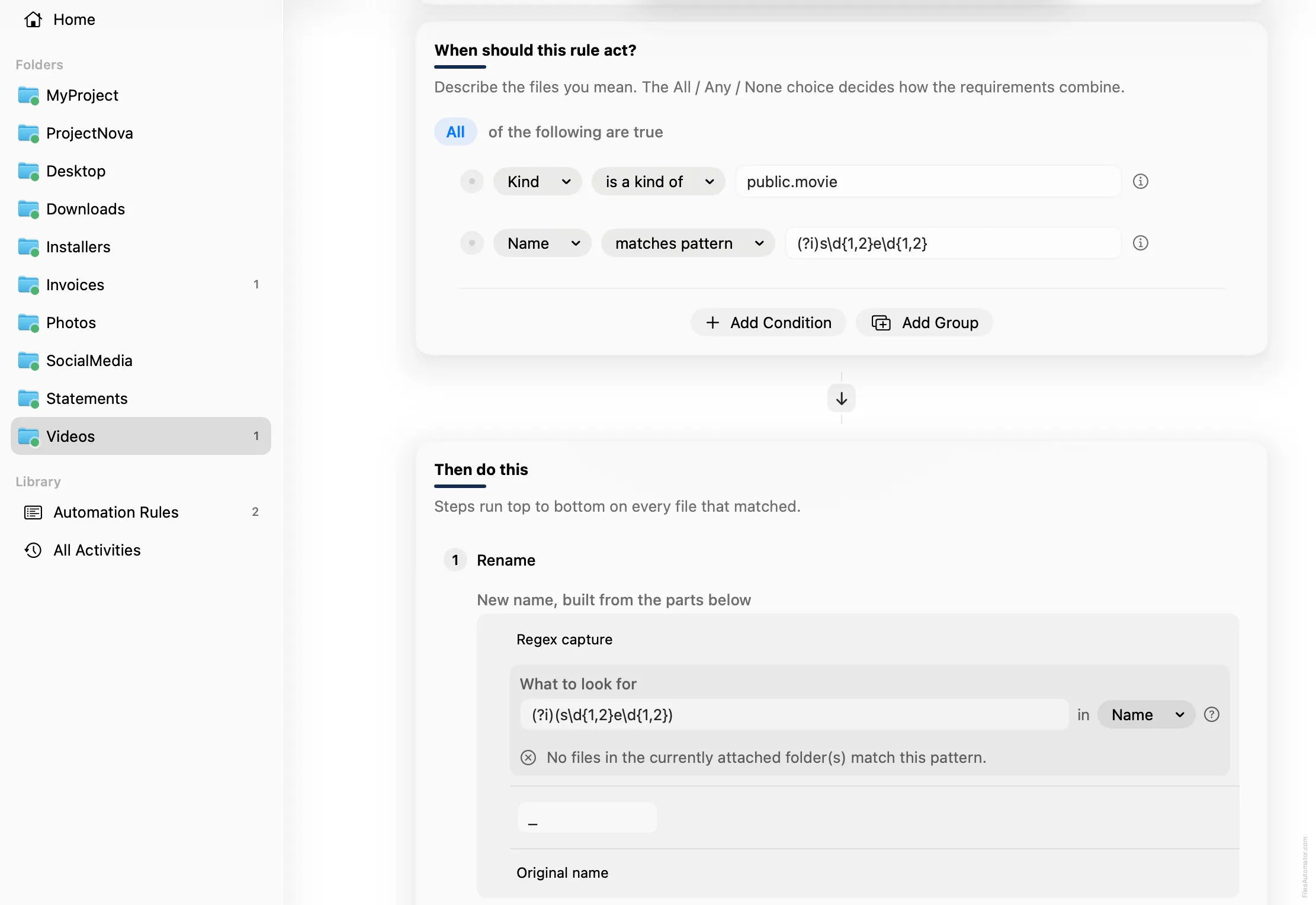
Step 1: Rename
Choose Add Step, then Rename. In “New name, built from the parts below”, use Add Part, then Regex capture. Leave its source on Name, and enter this pattern into “What to look for”:
(?i)(s\d{1,2}e\d{1,2})Add Part again, choose Text, and type an underscore. Add Part once more and choose Original name.
Turn it on
Select Create Automation Rule, then switch the rule on. Every matching video now gets its season and episode tag pulled to the front of its filename.
A faster way
The template gallery inside FilesAutomator already has this rule ready to install, named Rename ripped media by season and episode.
Get FilesAutomator
Everything in this guide happens inside FilesAutomator itself. Download it free from the Mac App Store to follow along, or to install this exact rule from the template gallery in one click instead of building it by hand.
Download on the App Store