How to run a Shortcut automatically when files arrive on Mac
Runs a Shortcut of your choosing on every file that arrives here
Advanced · About 2 minutes
In this guide
What this does
Every other rule in this guide works the moment you install it. This one is different, and worth knowing that up front: it hands a file off to a Shortcut you build yourself in Apple’s Shortcuts app, so it’s an escape hatch for anything the built in condition and action steps can’t cover, rather than a ready made rule of its own. Handing off to a Shortcut, rather than running arbitrary code directly, keeps things sandbox safe.
What you’ll build
A rule that matches every real file, then runs a Shortcut of your choosing on it.
Open the rule editor
This walkthrough happens inside FilesAutomator itself, so install it from the Mac App Store first if you have not already, then open it. In its toolbar, choose Add, then New Automation Rule.
Name the rule and choose a folder
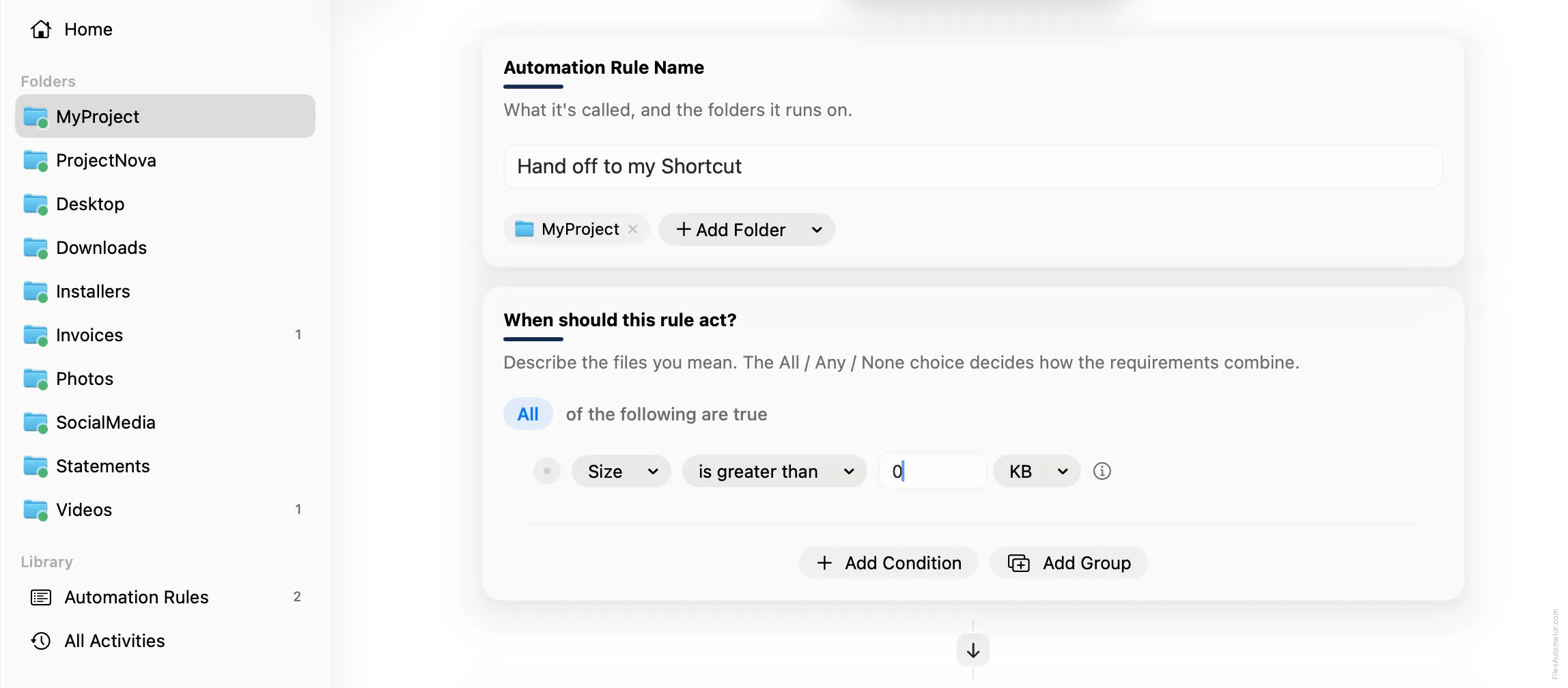
Name it something like “Hand off to my Shortcut” and use Add Folder to choose the folder you want watched.
Build the condition
Add a single condition: Size is greater than 0, matching any real file. There’s no obvious default condition for a general purpose escape hatch like this one, the way “invoice” or “screenshot” has one, so adjust this to fit whatever you’re actually routing to your Shortcut.
Add the action steps
Step 1: Run a Shortcut
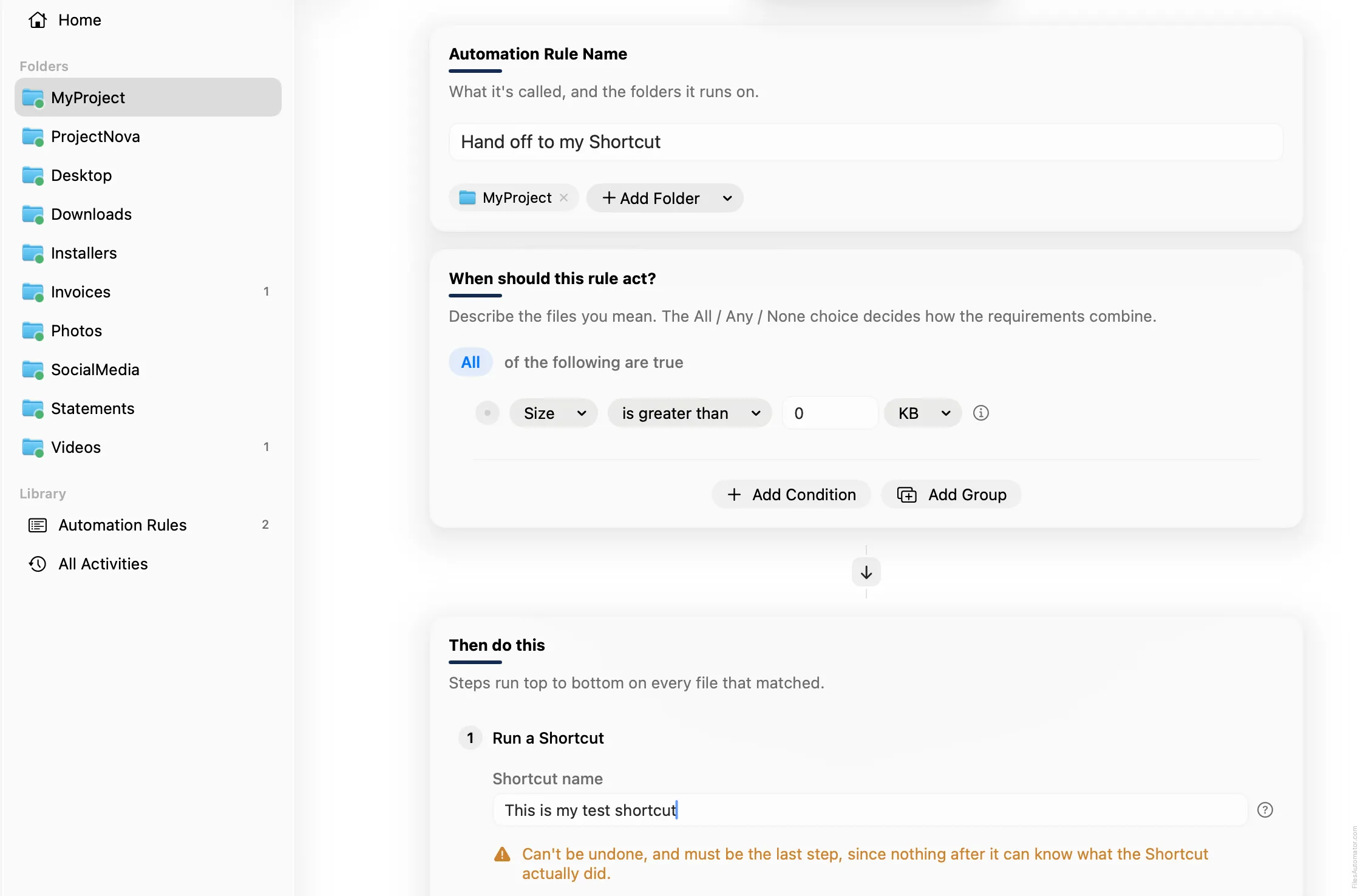
Choose Add Step, then Run a Shortcut. In “Shortcut name”, type the exact name of a Shortcut you’ve already built in the Shortcuts app.
This step must be the last one in the rule, since nothing after it can know what the Shortcut actually did, and running a Shortcut can’t be undone from Activity the way every other action here can.
Turn it on
Select Create Automation Rule, then switch the rule on. From now on, every matching file triggers your Shortcut automatically.
A faster way
The template gallery inside FilesAutomator has a starting point for this rule, named Hand off to a Shortcut, though you’ll still need to edit it afterward to name your own Shortcut instead of the placeholder it ships with.
Get FilesAutomator
Everything in this guide happens inside FilesAutomator itself. Download it free from the Mac App Store to follow along, or to install this exact rule from the template gallery in one click instead of building it by hand.
Download on the App Store