How to fix filenames that break OneDrive sync on Mac
Removes characters that OneDrive and other cloud sync services reject
Intermediate · About 2 minutes
In this guide
What this does
macOS allows characters in filenames that Windows based cloud sync services like OneDrive simply refuse to upload, things like a colon, an asterisk, or a question mark. If you’ve ever seen a sync error mentioning invalid characters, this is usually why. This rule strips out that whole set of troublesome characters automatically, so a file is safe to sync before it ever gets there.
What you’ll build
A rule that matches every real file, then removes any character from its name that cloud sync services commonly reject.
Open the rule editor
This walkthrough happens inside FilesAutomator itself, so install it from the Mac App Store first if you have not already, then open it. In its toolbar, choose Add, then New Automation Rule.
Name the rule and choose a folder
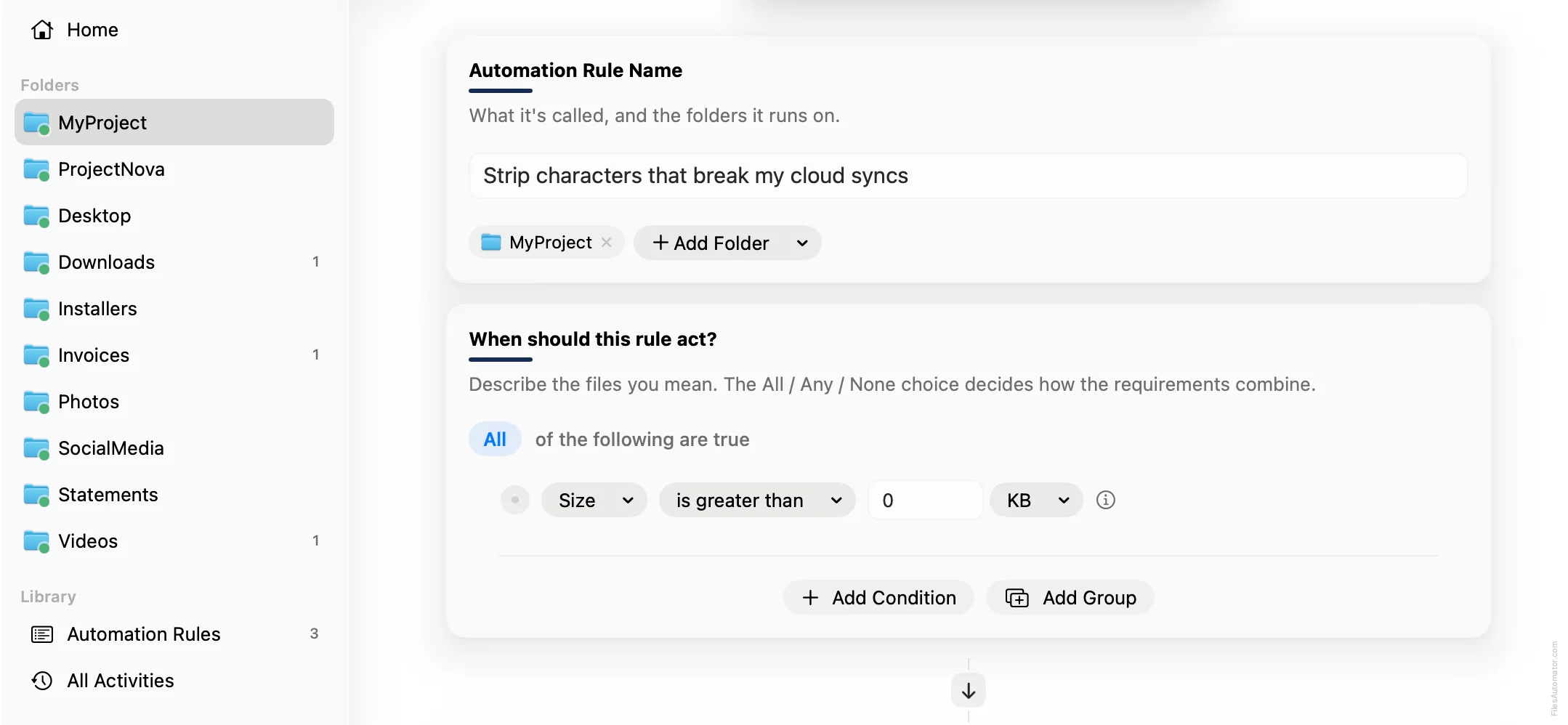
Name it something like “Strip characters that break my cloud sync” and use Add Folder to choose your synced folder.
Build the condition
Add a single condition: Size is greater than 0, matching any real file.
Add the action steps
Step 1: Rename
Choose Add Step, then Rename. In “New name, built from the parts below”, use Add Part, then Find and Replace in Name. Turn on “Find is a pattern”, since this is a character pattern rather than a literal string, enter this pattern to find:
["*:<>?/\|]Leave the replacement empty, so every match is simply removed. Add Part again, choose Text, type a period, then Add Part once more and choose Extension.

Turn it on
Select Create Automation Rule, then switch the rule on. Every file that lands here now gets a name your cloud sync service will actually accept.
A faster way
The template gallery inside FilesAutomator already has this rule ready to install, named Strip characters that break cloud sync.
Related rules
Get FilesAutomator
Everything in this guide happens inside FilesAutomator itself. Download it free from the Mac App Store to follow along, or to install this exact rule from the template gallery in one click instead of building it by hand.
Download on the App Store